Apple hides a secret button in every iPhone that you can unlock in your settings and put to some amazing uses
 Claire Reid
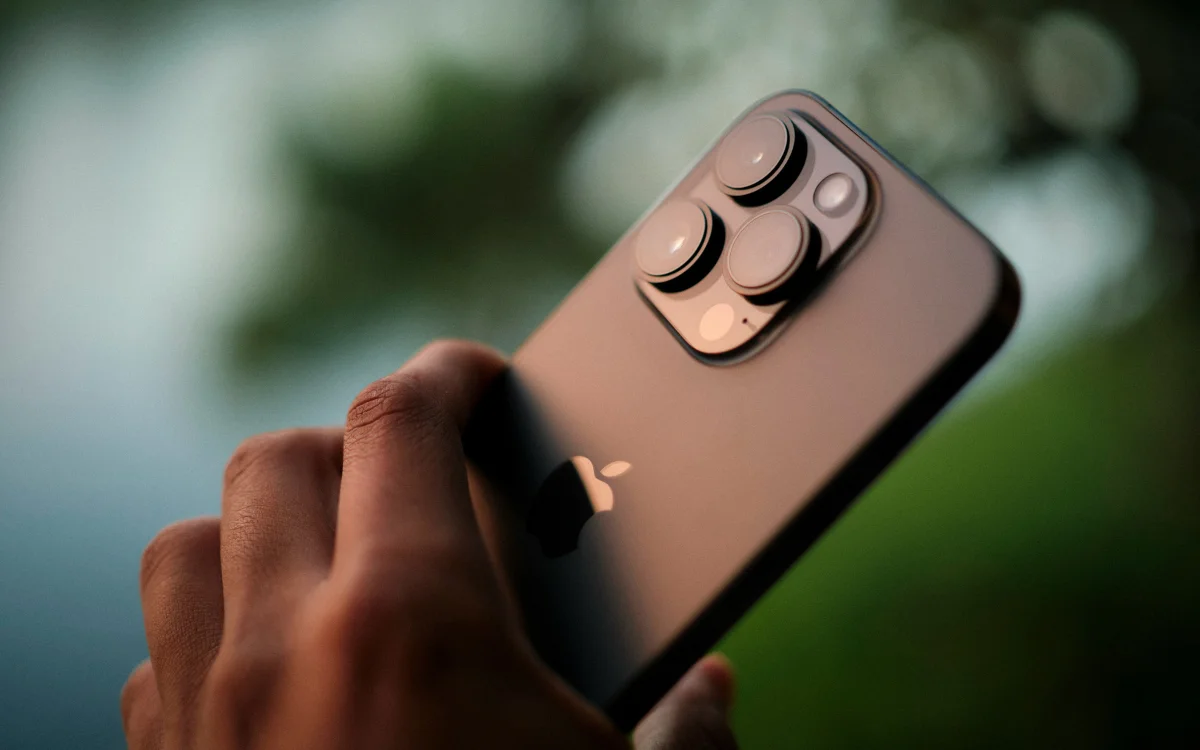

Your Apple iPhone has a secret button on the back, and it can be used for a whole range of different things.
If you’ve been an iPhone user for a while, chances are you think you know all there is to know about your smartphone.
But there could still be a handful of functions you know nothing about, like this hidden safety feature that kicks in automatically, or the option to blur faces right in the Photos App.
There’s also a button on the back of your iPhone that you can’t see, but is easy to set up and could come in very handy.
Enter our competition to win a stunning 2006 Ford GT or $400,000 cash!
You might never have noticed it but your iPhone has a hidden ‘button’ on the back
You probably spend hours with your iPhone in your hand every single week, so at this point, you might be wondering where exactly that ‘hidden’ button is.
That’s because it’s not a button in the sense of the side buttons; instead, it’s a sensor placed behind the Apple logo that is sensitive to touch.
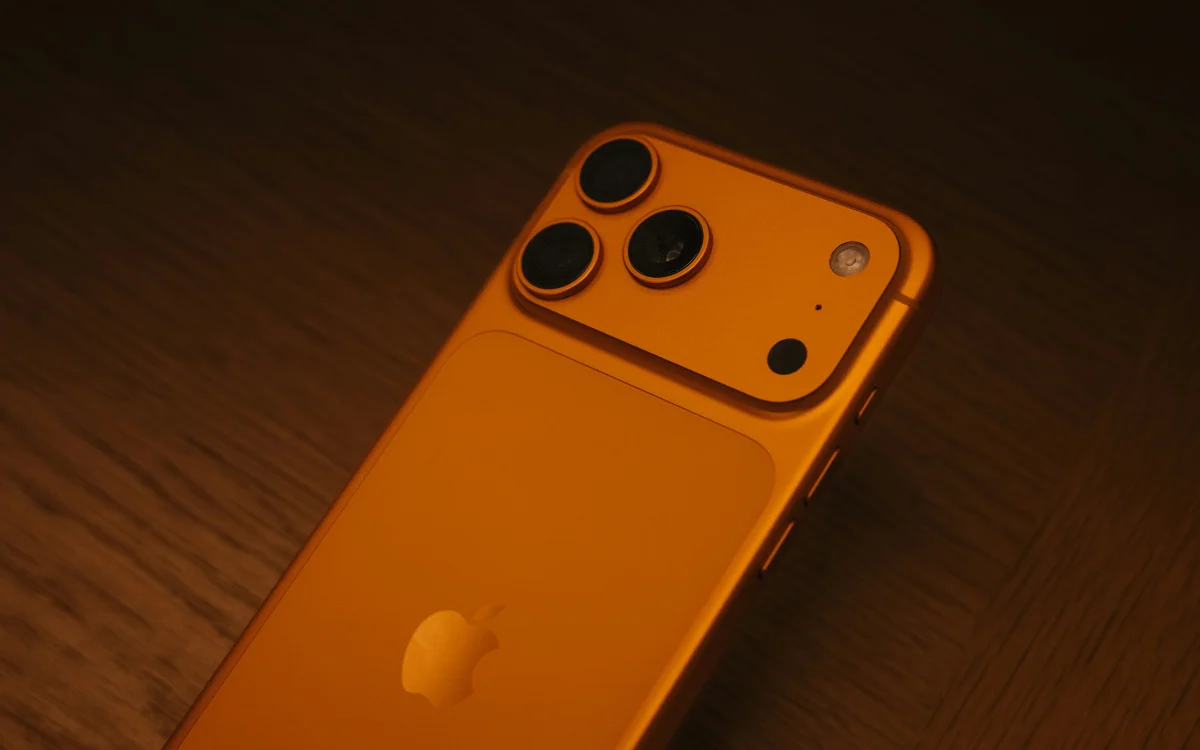
You can set it up so that when you tap the logo on the back of your iPhone, it performs an action, which could be anything from taking a screenshot to opening up the Control Center or adjusting the volume.
But you can also set up a custom automation using the Shortcut app, so tapping the back of your iPhone will open up a specific playlist, launch a guided meditation, or trigger a Good Morning routine that’ll read the weather, show you your calendar for the day, and display reminders.
To set it up, you’ll need to go into Settings, find Accessibility, and then tap Touch.
Here you can scroll to Back Tap, where you’ll see two options: Double Tap or Triple Tap.
Then click on either option and scroll down to select the action you’d like it to perform.
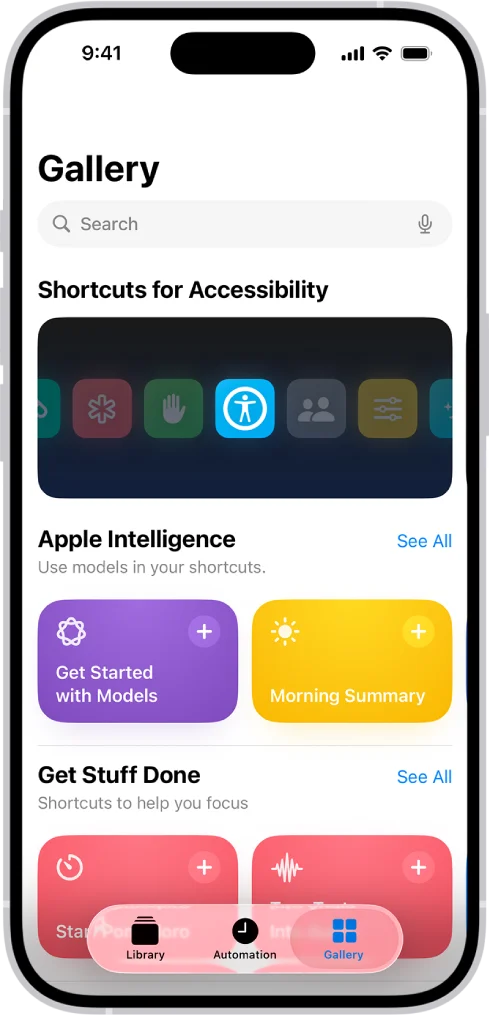
You can choose options for both the Double Tap and Triple Tap, and it’s up to you how to set them up, but it can be a good idea to use the Double Tap for something you do a lot, like take a screenshot, and the Triple Tap option for one of the shortcut options.
The feature is available on the iPhone 8 and newer, and you’ll also need to be running on an updated iOS.
The Accessibility settings have some other useful features
The Back Tap feature is inside the Accessibility menu, as Apple initially introduced it as a helpful assistive function, but it’s useful for everyone.
And it’s not the only handy feature in the Accessibility settings.
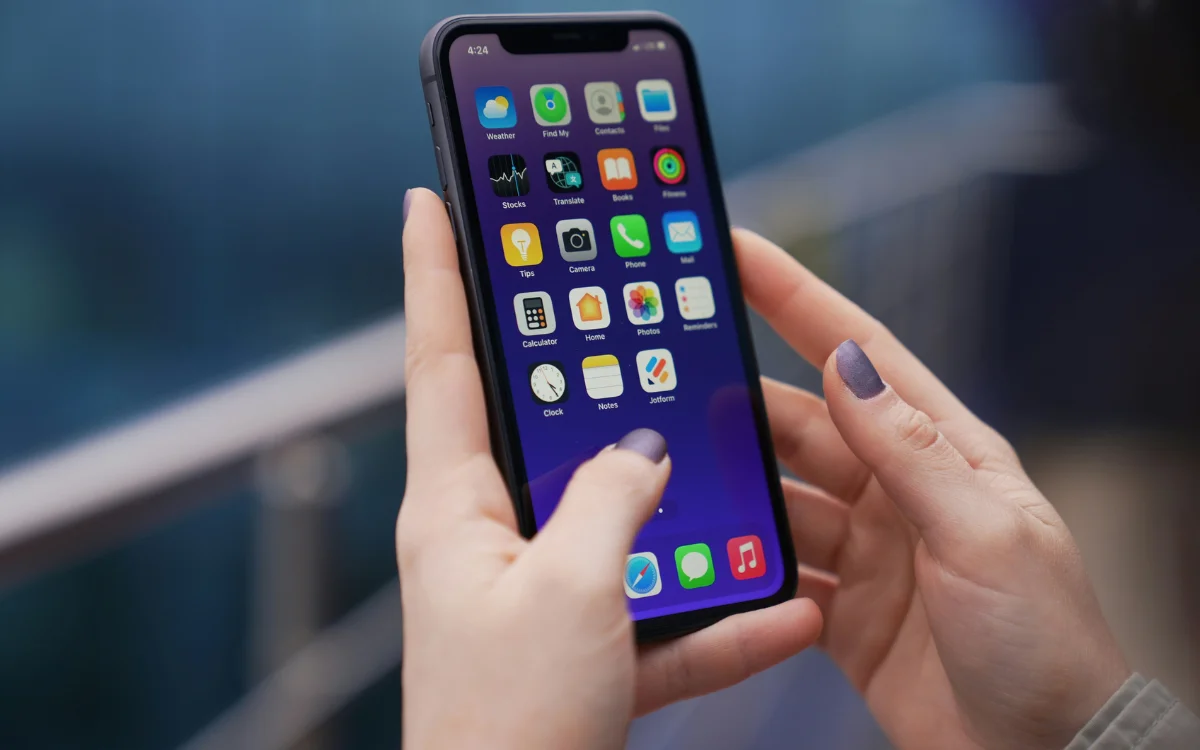
You can also set up Voice Control so you can control your iPhone using just voice commands.
And if you go into the Audio & Visual Accessibility settings, you can enable your device to Always Show Volume Control, so it doesn’t disappear from the lock screen.
DISCOVER SBX CARS: The global premium car auction platform powered by Supercar Blondie
Follow topics and authors from this story to see more like this in your personalised homepage feed and to receive email updates.