Apple's recent iOS 26.1 update changed the iPhone's Alarm and if you don't like it this is how you can reverse it in settings



Apple’s recent iOS 26.1 update has left people seriously confused after it changed the way the iPhone’s Alarm worked.
Instead of simply tapping a big ‘Stop’ button when your alarm goes off, users now have to physically slide across the screen to turn it off.
The change was designed to stop people from accidentally silencing alarms while half asleep, but plenty of iPhone owners immediately hated it.
Thankfully, Apple has a way to switch things back, although most people would never stumble across the setting on their own.
Apple’s iOS 26.1 update has confused some iPhone users
The new ‘slide to stop’ gadget feature arrived with iOS 26.1 and instantly reminded longtime Apple fans of the classic ‘slide to unlock’ bar from older iPhones.
Apple appears to have introduced the change because the oversized alarm buttons added in iOS 26 made it far too easy to accidentally hit ‘Stop’ instead of ‘Snooze’.
But many users weren’t impressed.
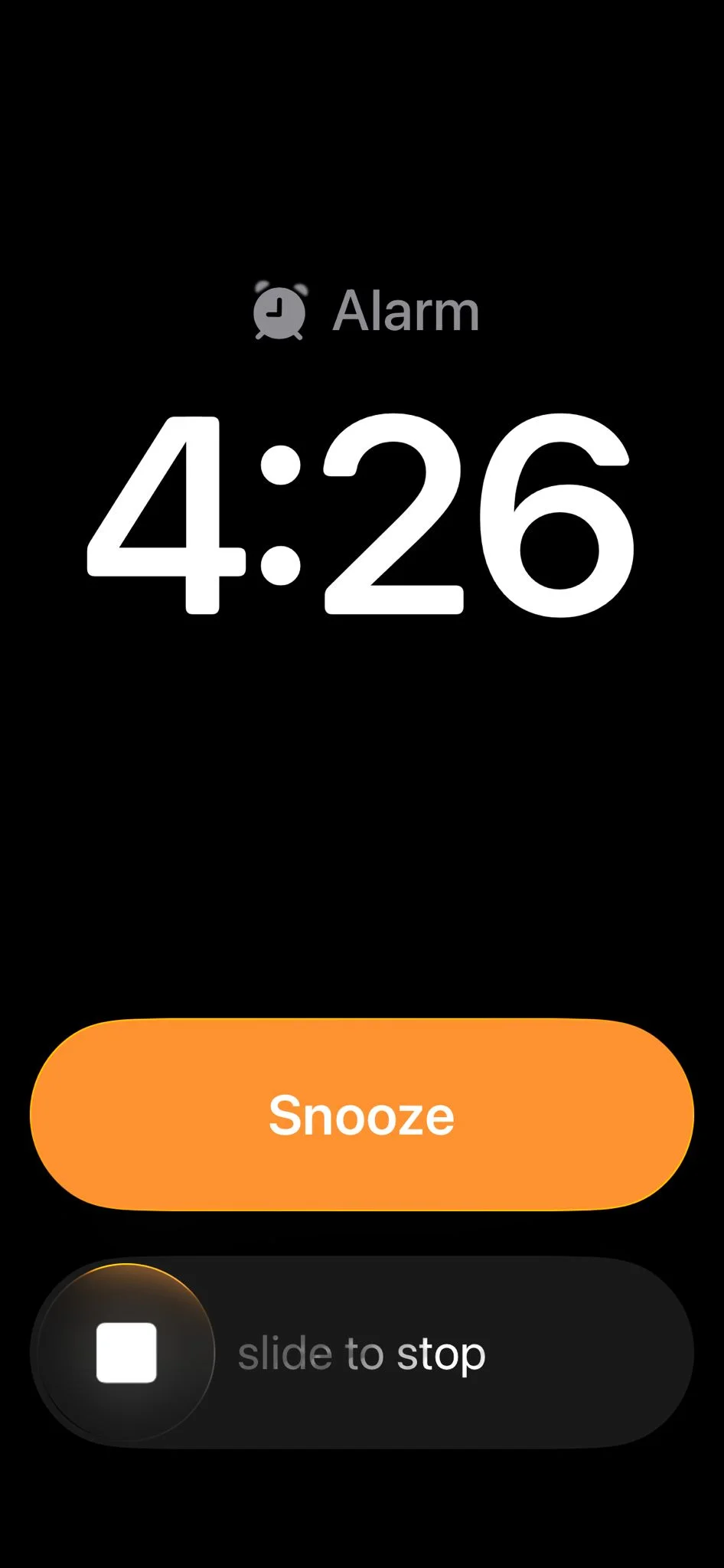
On Reddit, people described the feature as ‘annoying’ and complained that it completely ruined years of morning muscle memory.
Others said they nearly overslept because they didn’t realize the alarm system had changed overnight.
Some visually impaired users also said the new slider made alarms harder to dismiss quickly when using accessibility features like VoiceOver.
The good news is Apple did include a hidden option to bring back the old one-tap stop button, so everyone can calm down now.
How to reverse the slider in settings
If you want your old alarm setup back, the fix only takes a few seconds.
All you need to do is:
- Open Settings
- Tap Accessibility
- Tap Touch
- Scroll all the way down
- Turn on ‘Prefer Single-Touch Actions’
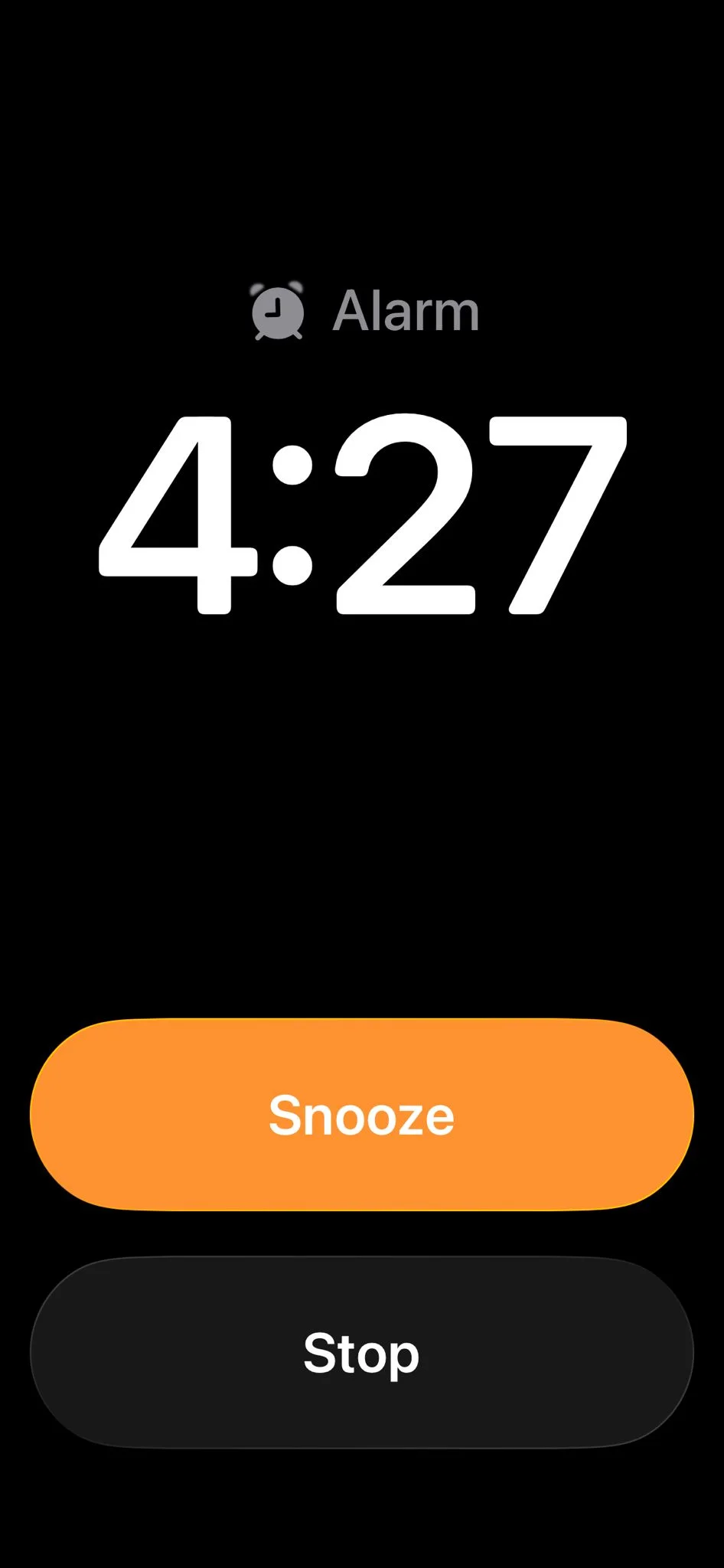
Once enabled, your alarms and timers will switch back to the old-style tap buttons instead of the new swipe slider.
There is one small catch though.
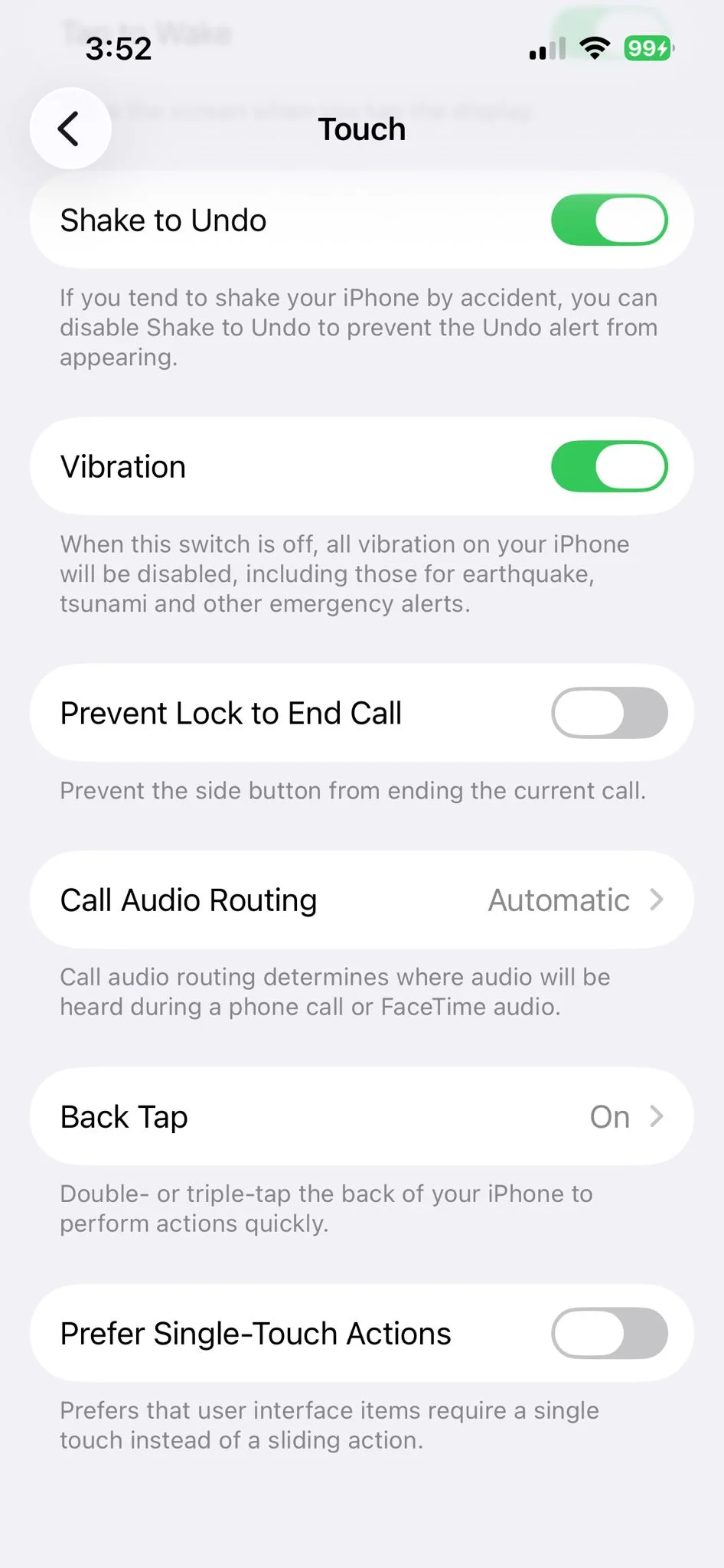
Some users have pointed out that the accessibility setting can also affect other sliders throughout iOS, not just alarms, so your iPhone may behave slightly differently elsewhere too.
Still, for anyone tired of blearily swiping their phone awake every morning, it might be worth changing immediately.