You need to change these default settings right away on your Samsung phone
 Claire Reid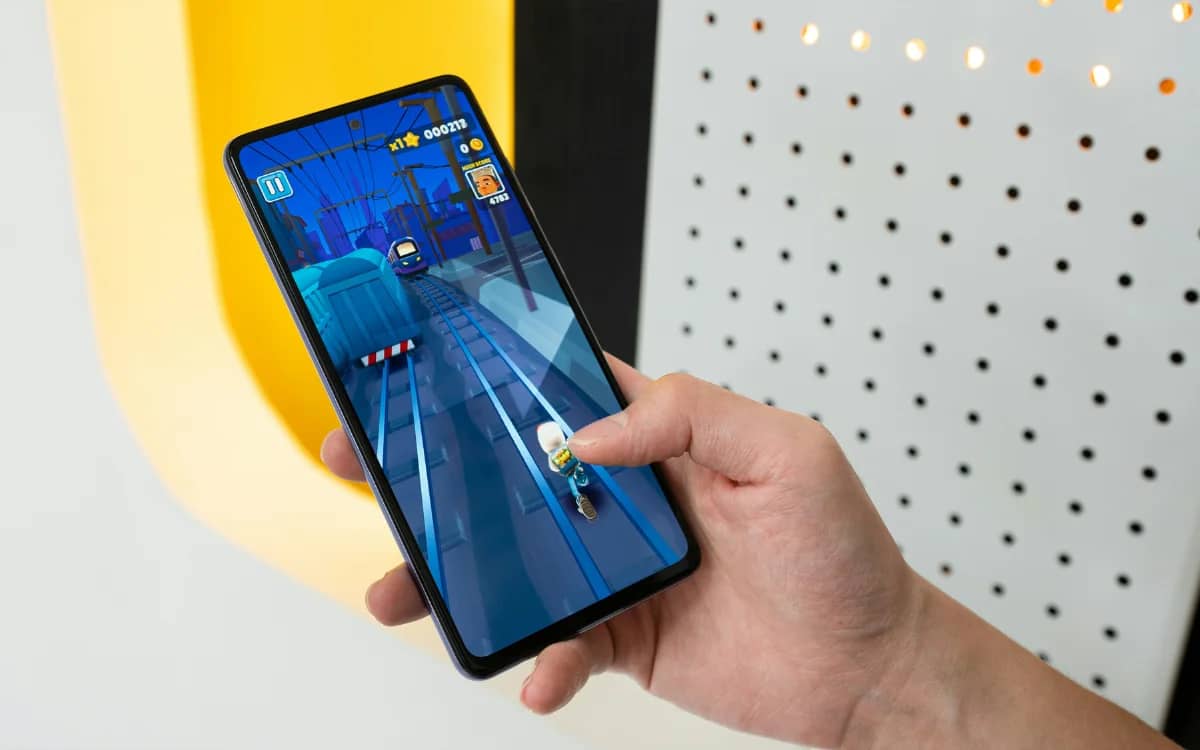
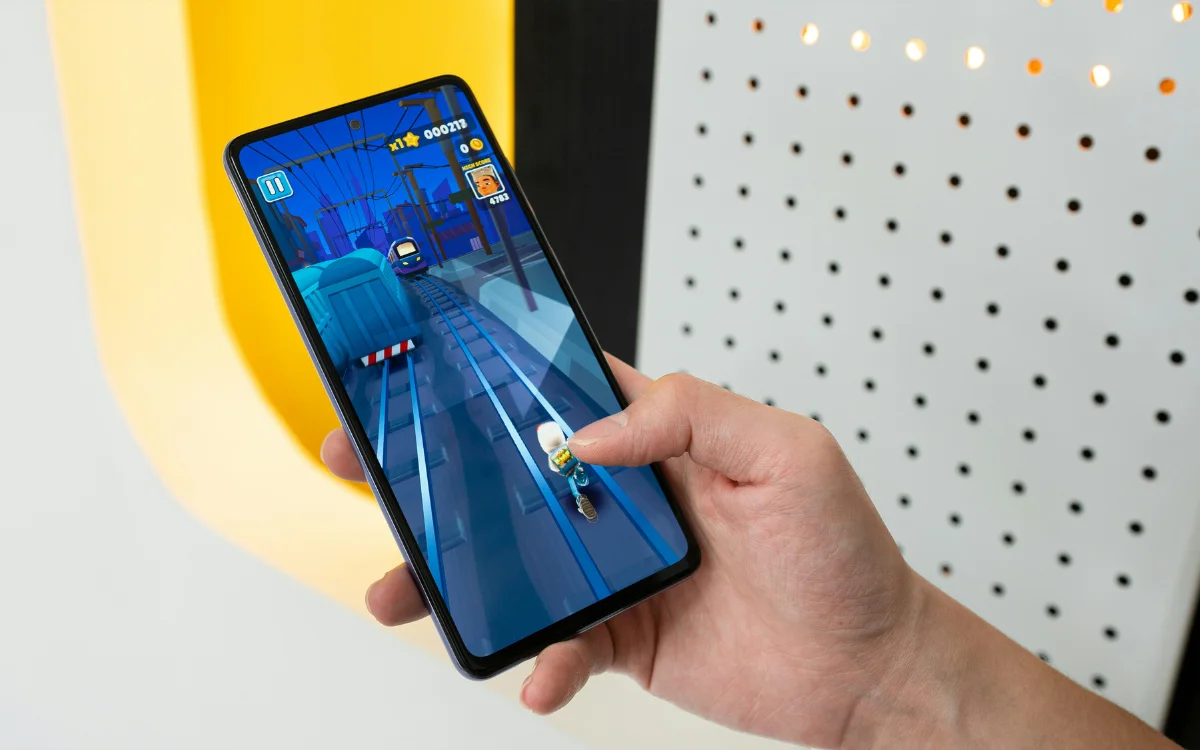

If you’re a Samsung Galaxy smartphone owner and you’re still running it on its default settings, then you might not be getting the best possible experience.
Samsung launched the Galaxy range of phones in 2009, and they were the company’s first Android devices.
Sixteen years later, Samsung has sold more than three billion Galaxy smartphones, and until very recently, when it was surpassed by Apple, Samsung had been the biggest smartphone producer in the world.
And if you happen to be one of those Galaxy smartphone holders, then there are a handful of simple setting changes you can make that should improve how it works.
Click the star icon next to supercarblondie.com in Google Search to stay ahead of the curve on the latest and greatest supercars, hypercars, and ground-breaking technology
Here’s what to change to make your Samsung Galaxy better to use
Galaxy runs on a custom Android operating system called One UI, which these days comes with some cool AI elements and features.
But it also comes with some slightly less cool features as default.
Fortunately, they can all be easily changed to make using your Samsung a more pleasant experience.
Ditch the quick panel settings
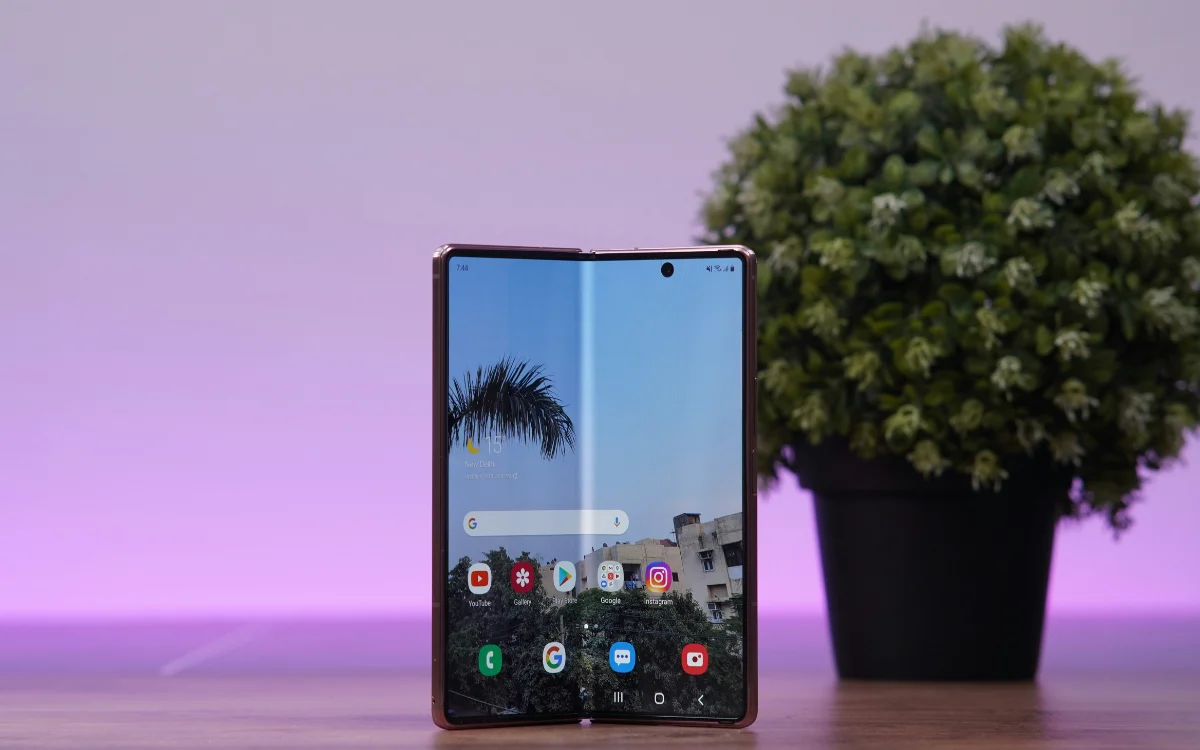
On older versions of Samsung’s operating system, swiping down the screen would reveal the notification shade, which contained the Quick Settings.
However, as Slashgear reports, on newer versions, these two features have been split into two, which makes it harder to use.
Thankfully, you can merge them back together again by hitting Panel Settings and then tapping Together.
Speed up your Samsung animations
The newer One UI also features some upgraded animations that pop up when you’re navigating around.
These look quite smart, but they can waste a bit of time, so if you’d rather cut to the chase, you can speed them up.
To do so, you’ll need to go to your phone’s developer settings by going into Settings, scrolling to About Phone, and hitting Software Information.
Then, tap Build Number several times until it tells you that you’ve accessed developer settings, after which you can go back to Settings, and Developer Options will have appeared at the bottom.
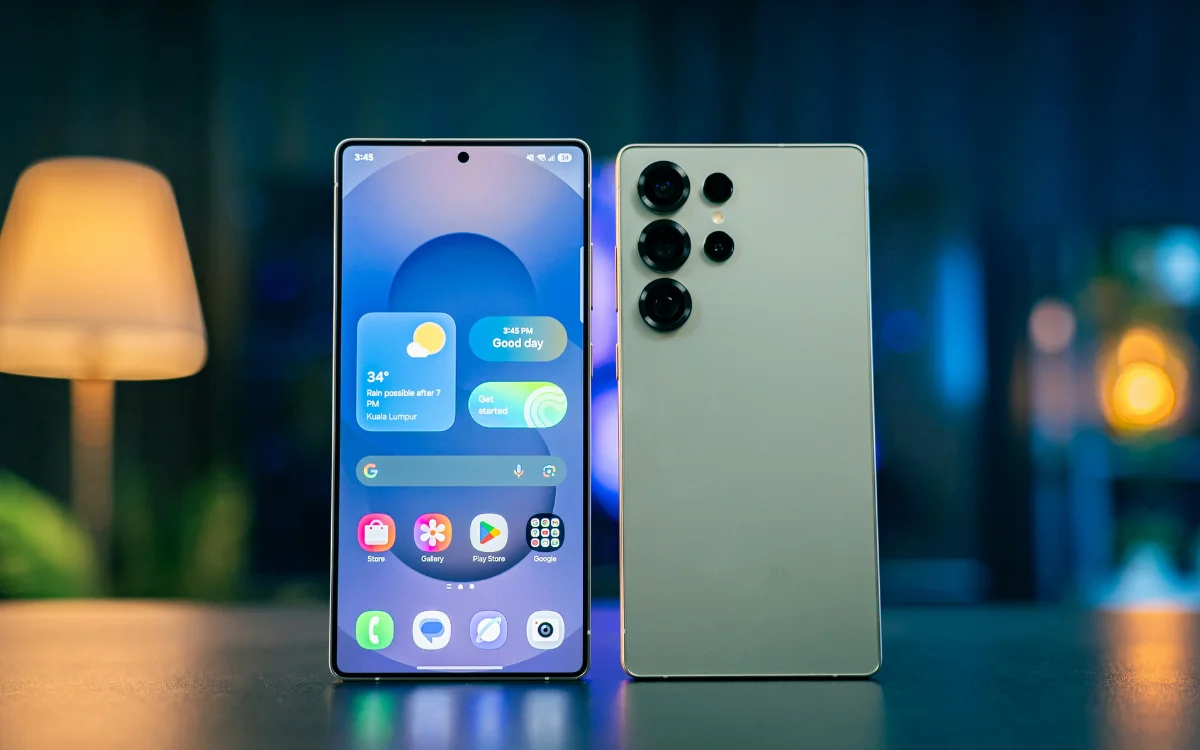
In here, hit Drawing and then find the Window Animation Scale, Transition Animation Scale, and Animator Duration Scale settings and set them all to 0.5x.
Get rid of the navigation buttons
Although almost everyone uses swipes and gestures to navigate around their smartphones, Samsung Galaxy devices still have the three-button navigation bar across the bottom.
If you fancy getting rid of it, you can go into Settings, find Display, scroll to Navigation Bar, and then hit Swipe Gestures.
You can give yourself even more screen room by going into More Options and then turning off Gesture Hint.
Regain your Samsung Galaxy’s power button
The side button on Samsung phones used to be the power button.
But on newer models, it’s known only as the ‘side button’, which is ‘versatile’, according to its creator.
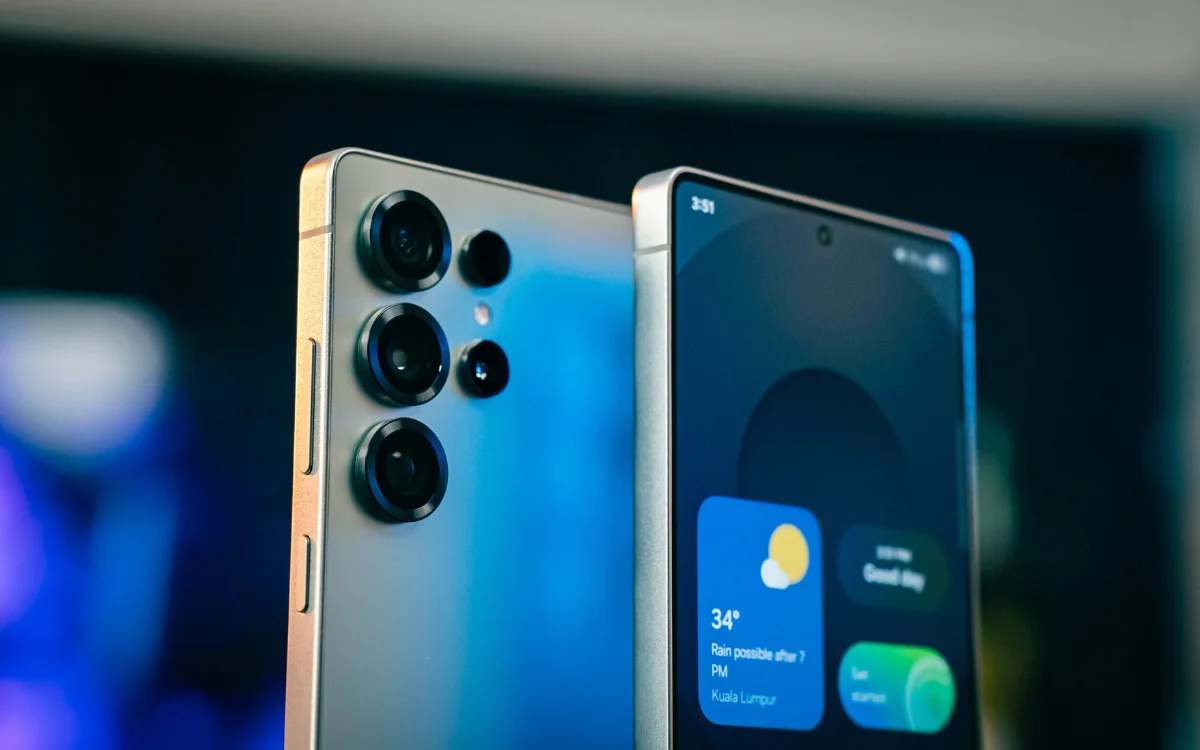
This means it no longer functions as the power button by default, and instead will call up the Gemini assistant.
If you’d like to turn it back into a power button, hold down the side button, open up Settings, and find Advanced Features. In here, scroll to Side Button, and then hit Long Press and select Power.
Improve the picture quality
Chances are, your Samsung Galaxy comes with a flash, high-resolution screen, but it also comes downgraded by default.
To improve how your screen looks, you’ll need to go into Settings, open Display, and then tap Screen Resolution and set it to the highest possible.
Your phone might flicker a bit while it adjusts, but once it’s settled, it’ll look better than ever.
DISCOVER SBX CARS: The global premium car auction platform powered by Supercar Blondie
Follow topics and authors from this story to see more like this in your personalised homepage feed and to receive email updates.