Changing these 3 settings on your PC can save you from restarting and really speed it up
 Claire Reid

If your PC starts feeling sluggish, your instinct might be to give it a restart, but there are actually three settings you can change that could make a bigger difference.
Some days it can feel a bit like your PC is giving up and in need of a break.
In this situation, many of us might switch it off and on again, but that could just be a temporary solution.
Here’s some easy things you can do instead that could be more beneficial.
Instead of hitting restart, change these three settings
Restarting your Windows PC can be a quick way to resolve performance issues, and it’s a good idea to do it regularly.
But if you find that your computer has recently been running more slowly on a regular basis, then you might need to take a look into your settings:
Make sure your PC is giving you its Best Performance
Windows PCs come with different power modes that alter their performance and energy use.
If you’ve never changed this setting, then it’s probably switched to Balanced, which is the default mode and helps to conserve energy.
However, if your PC is lagging, then you might want to switch it to Best Performance instead.
In Balanced mode, your PC will be focused on being efficient, not on its performance, but by switching to Best Perfromance you should see far quicker responses.
To switch, navigate to Settings, choose System, find Battery Power, and click Power Mode, then choose Best Performance from the drop-down.
Give your PC some room to run
Your PC needs room to run, so if your storage space is starting to get a little crammed, then deleting some files will make it run a lot more smoothly.

As a general rule, you need at least 10 to 15 percent of your drive free for average usage, but if you’re putting it through heavier workloads, you should aim to keep around 20 percent free.
Regularly deleting files you no longer use is, obviously, the simplest way to free up disk space, but you can also turn on Storage Sense to get rid of old unused files and empty your Recycle Bin.
To turn it on, go to Settings, hit System, click Storage, and switch on Storage Sense.
You can even go into Configure Storage Sense to make sure it works exactly how you like.
Watch out for performance-zapping startup apps
Last, but probably most importantly, check which apps launch on Startup, and ditch the ones you don’t need.
Some startup apps, like your anti-virus software, can be very handy.
But if you’ve had your PC a while, there’s a good chance you have a bunch of others that aren’t as useful, and can have a seriously negative impact on your computer’s performance.
Fortunately, it’s a pretty simple problem to fix.
Press Ctrl + Shift + Esc to open the Task Manager and then click the Startup Apps tab.
Here you can sort the apps by Startup Impact to see how much they’re slowing down your PC, and you can disable those you don’t use.
Windows comes with a handy free tool to check performance in real-time
As well as the simple setting changes above, Windows comes with a very handy Performance Monitor that analyzes everything going on in real-time, from startup apps to disk performance.
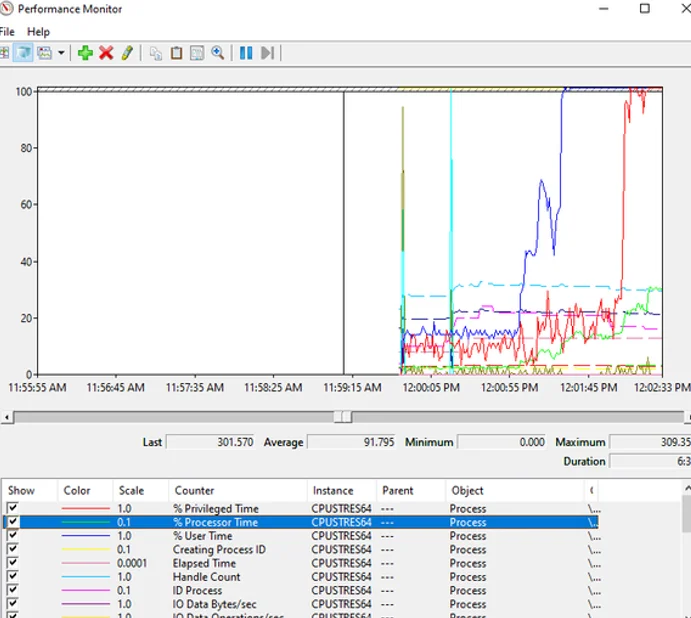
The advanced tool comes free with Windows and lets you monitor all kinds of activity with detailed performance counters.
To give it a look, press Win + R and then type: perfmon.
It can even create detailed reports.
Simply press Win + R on your keyboard, then input: perfmon/report.
After this, it’ll collect data for around a minute before giving you a comprehensive report, complete with color-coded warnings.
DISCOVER SBX CARS: The global premium car auction platform powered by Supercar Blondie