This is how to use the new live translation feature on your AirPods
 Claire Reid

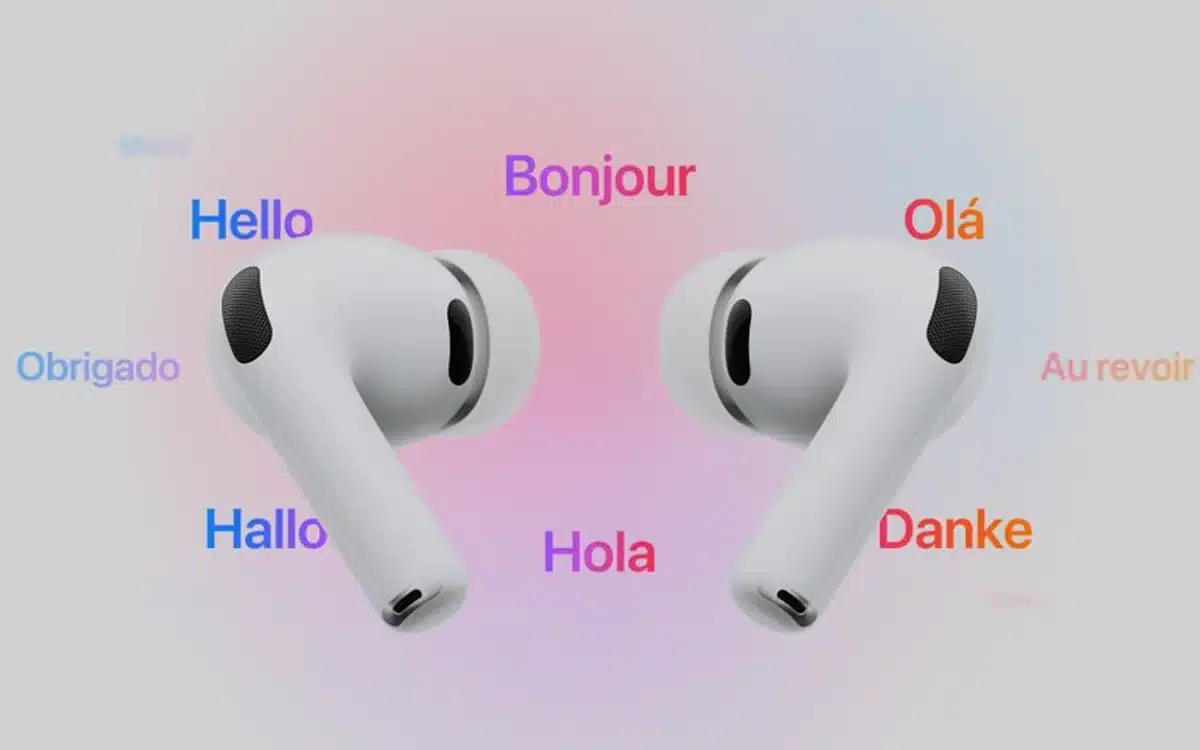
Apple AirPods have a very useful live-translation feature that could be an absolute game-changer for anyone traveling overseas.
In September last year, the tech giant unveiled AirPods Pro 3, boasting ‘incredible sound quality’ and ‘the world’s best in-ear Active Noise Cancellation’.
Alongside the new hardware, the company also announced that its proprietary Apple Intelligence would be coming to its AirPods, offering in-person live translation.
The futuristic feature is available on AirPods 4, AirPods Pro 2, AirPods Pro 3, or AirPods Max 2, and here’s how to get it up and running.
Enter our competition to win a stunning 2006 Ford GT or $400,000 cash!
Apple’s Live Translation turns your AirPods into a smart translation device
Picture the scene, you’re on a sunny summer holiday in Spain, and after a long day of sightseeing, you fancy stopping off for a cold drink and a bite to eat.
But as you approach the restaurant, the server comes over and begins to talk to you in Spanish.

Now, typically in this situation, you might try to rack your brain for a few words and phrases you do know, you could grab your phrase book, or you may pull out your phone and try to translate.
However, that could all soon be a thing of the past, thanks to Apple’s in-person live translation that is able to ‘listen’ to what the person is saying and translate it back to you in real time.
The translated dialogue also appears on your iPhone. How smart is that?
To use the clever new feature, you’ll need a pair of supported AirPods and an iPhone Pro 15 or later.
You’ll also need to switch Apple Intelligence on.
To get started, you’ll need to download the language the other person is speaking and the language you’d like it translated to.
So, using the example above, you’d go for Spanish and English.
Then simply pop your AirPods in and make sure they’re connected to your iPhone.
Go to the Translate app on your iPhone and tap Live at the bottom of the screen, and then choose languages for both Their Language and Your Language.
To start the Live translation, you can either hit Live at the bottom of the Translation app, use a Siri voice command to turn on Live Translation, or press and hold the stem on both of your AirPods at the same time.
You can also use it to respond in real-time
As well as being able to ‘listen’ live and translate what the person has said to you, you can also use Live Translation to reply.
The smart feature allows you to respond in your own language, and then translates it, meaning you can either show the translation on your iPhone’s screen or play the audio back through its speaker.
If you both happen to be wearing AirPods that support Live Translation, then you can basically have a fluid back-and-forth conversation with each of you hearing the translation in your language of choice.