Netflix automatically shares your entire watch history by default and this is how to stop it



Did you know that Netflix automatically shares your entire watch history by default? Most users have no idea it’s happening.
The streaming giant tracks everything from the shows you binge-watch to how long you spend browsing before picking something to watch.
What’s more surprising is that some of this information can be shared with third-party partners for advertising and analytics purposes unless you manually opt out.
Thankfully, the solution only takes about a minute and could help keep your viewing habits far more private.

Why Netflix shares your watch history
According to recent reports, Netflix collects detailed information about how you use the platform, including what you watch, what you stop watching, how long you spend browsing, and even how you interact with content before making a selection.
While much of that data is used to improve recommendations, some of it can also be shared with outside partners for advertising and analytics purposes unless users specifically opt out.
The setting is enabled by default, meaning many subscribers may be sharing far more information than they realize.
The good news is that turning it off doesn’t affect your Netflix recommendations, viewing experience, or access to any features, because Netflix will still use your viewing history internally to suggest shows and movies you might enjoy.



How do you stop the streaming service from sharing your info?
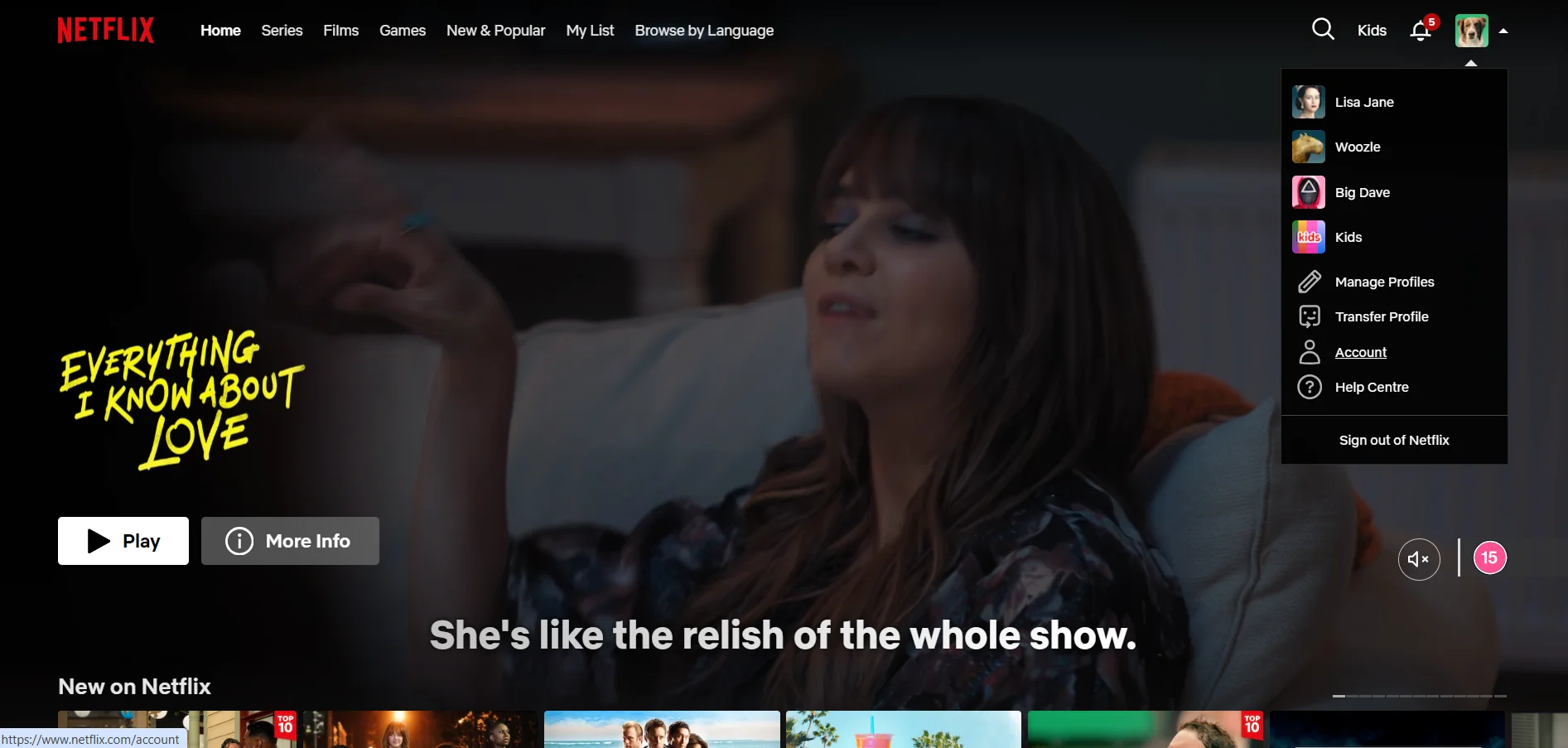
The process can only be completed through Netflix’s desktop website, so you won’t be able to change the setting through the mobile or TV apps.
To disable the data-sharing options:
- Sign into Netflix through a desktop web browser
- Click your profile icon and select “Account”
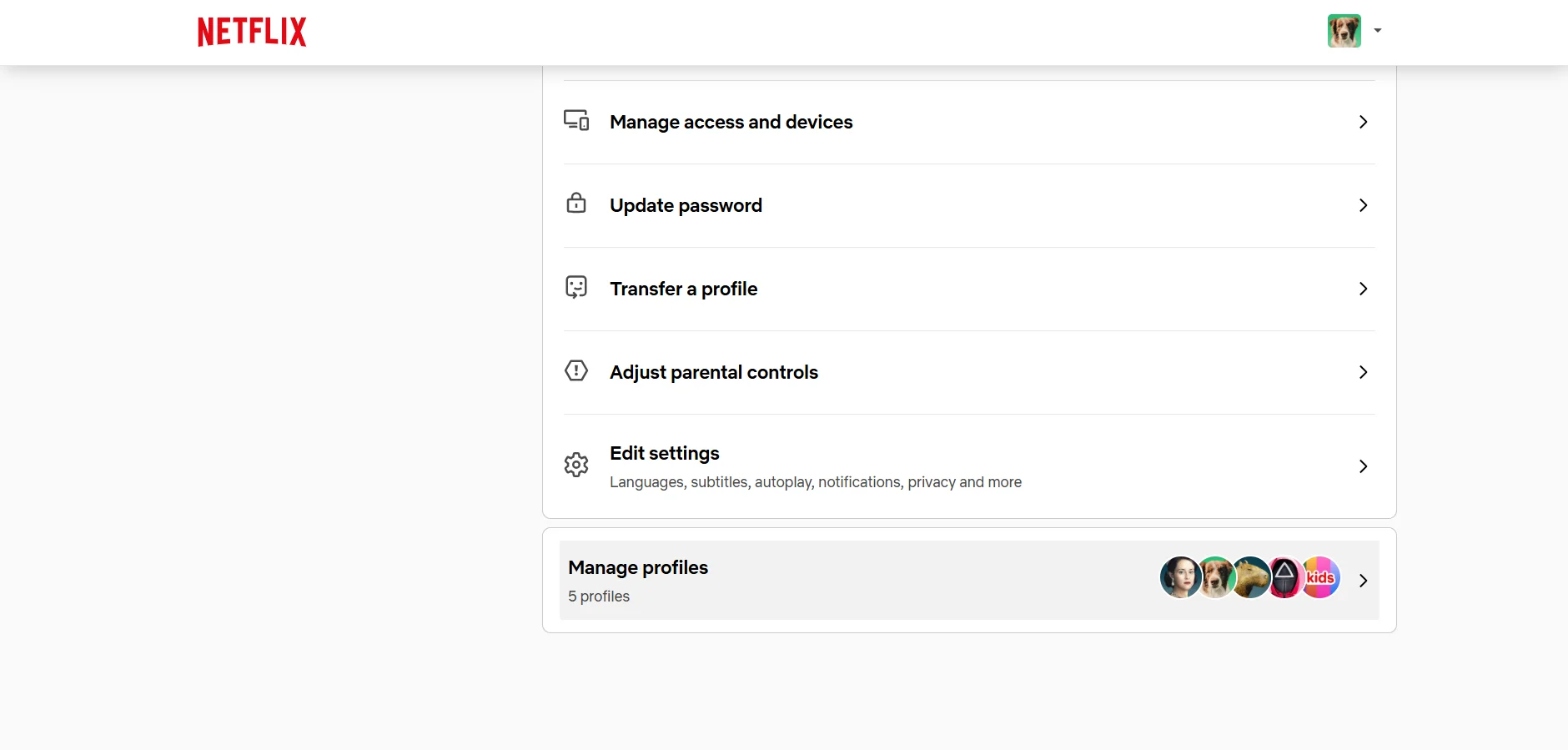
- Scroll down and choose “Manage profiles”
- Select the profile you want to update
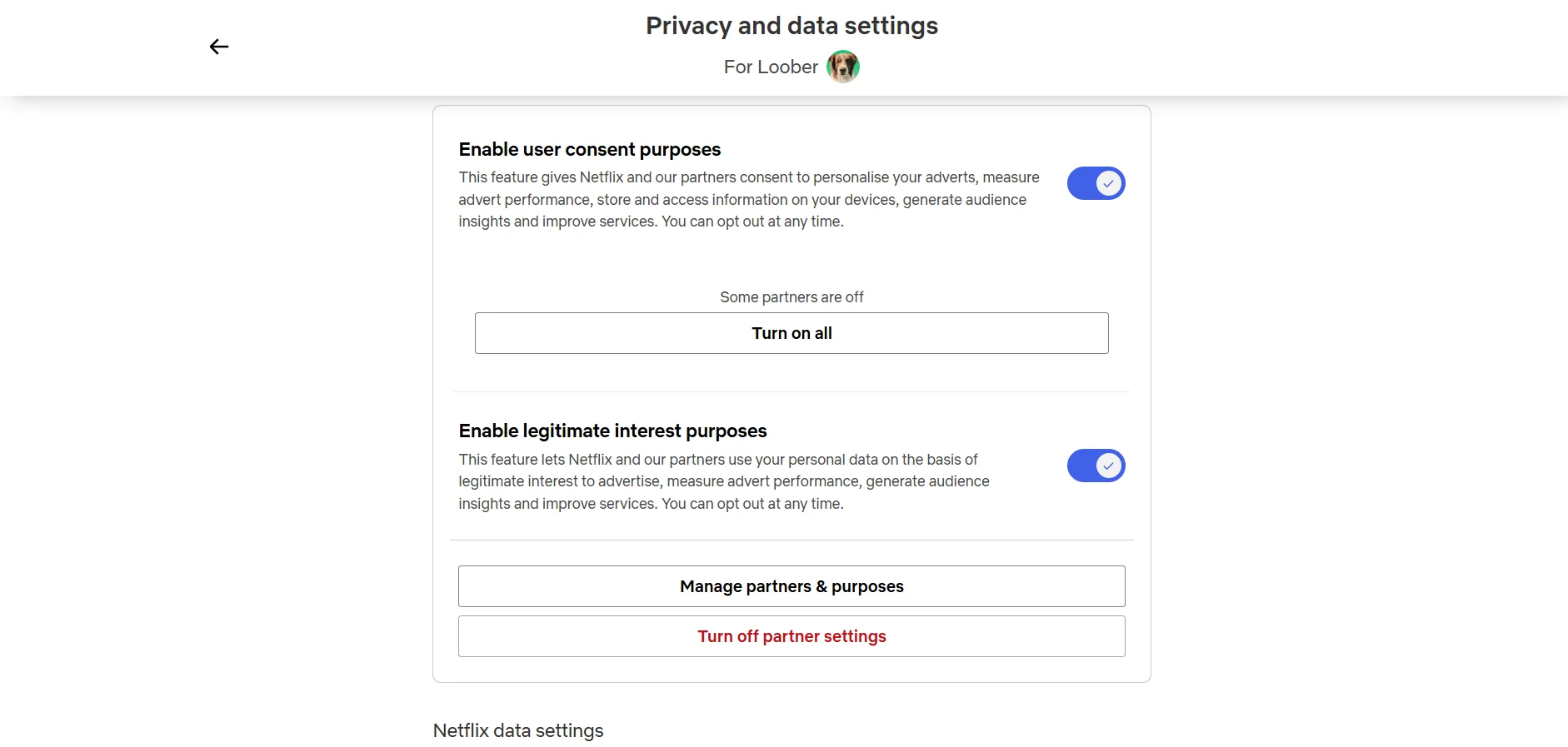
- Open “Privacy and data settings”
- Turn off all available data-sharing and advertising toggles
It’s worth noting that these settings apply to each profile individually.
That means if several people use the same account, every profile will need to be updated separately.
Once switched off, Netflix will continue collecting your watch history for its own recommendation system, but your information will no longer be shared with third-party advertising and analytics partners beyond what is required to operate the service.
For a setting that takes less than 60 seconds to change, it could be one of the easiest privacy upgrades Netflix users make all year.