USB-C cables aren't all the same and these are the details that make them behave differently

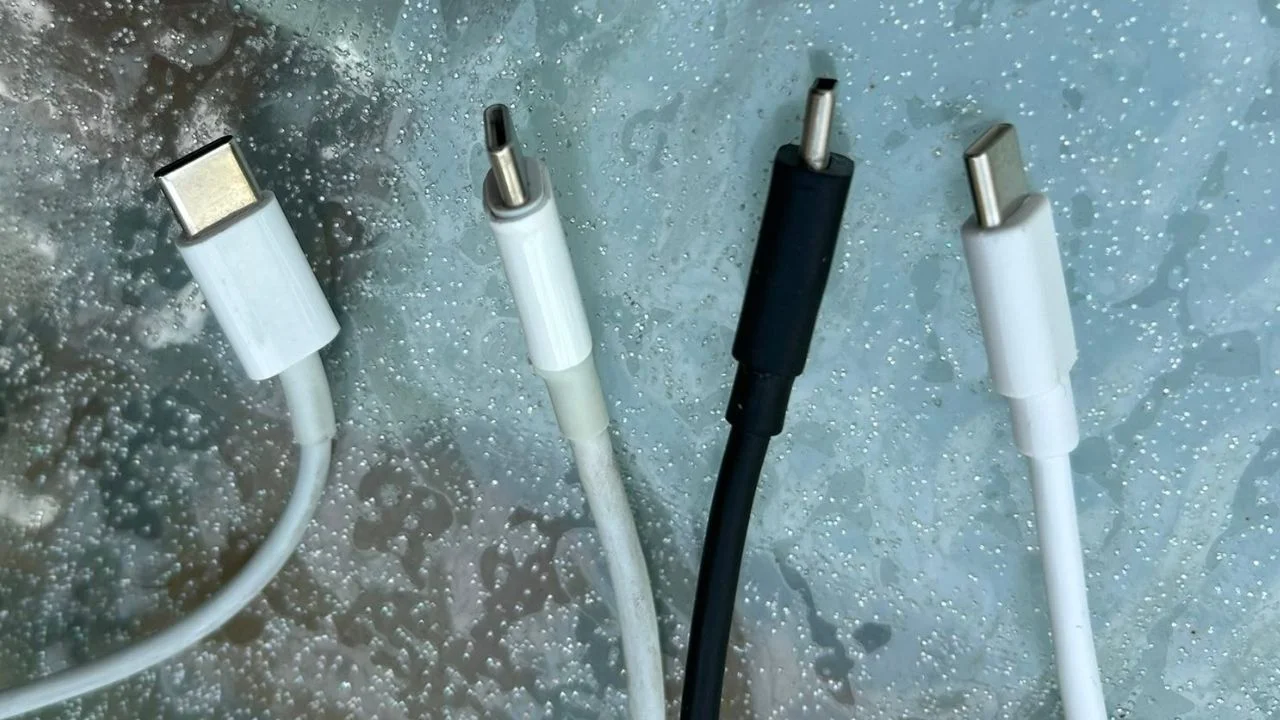

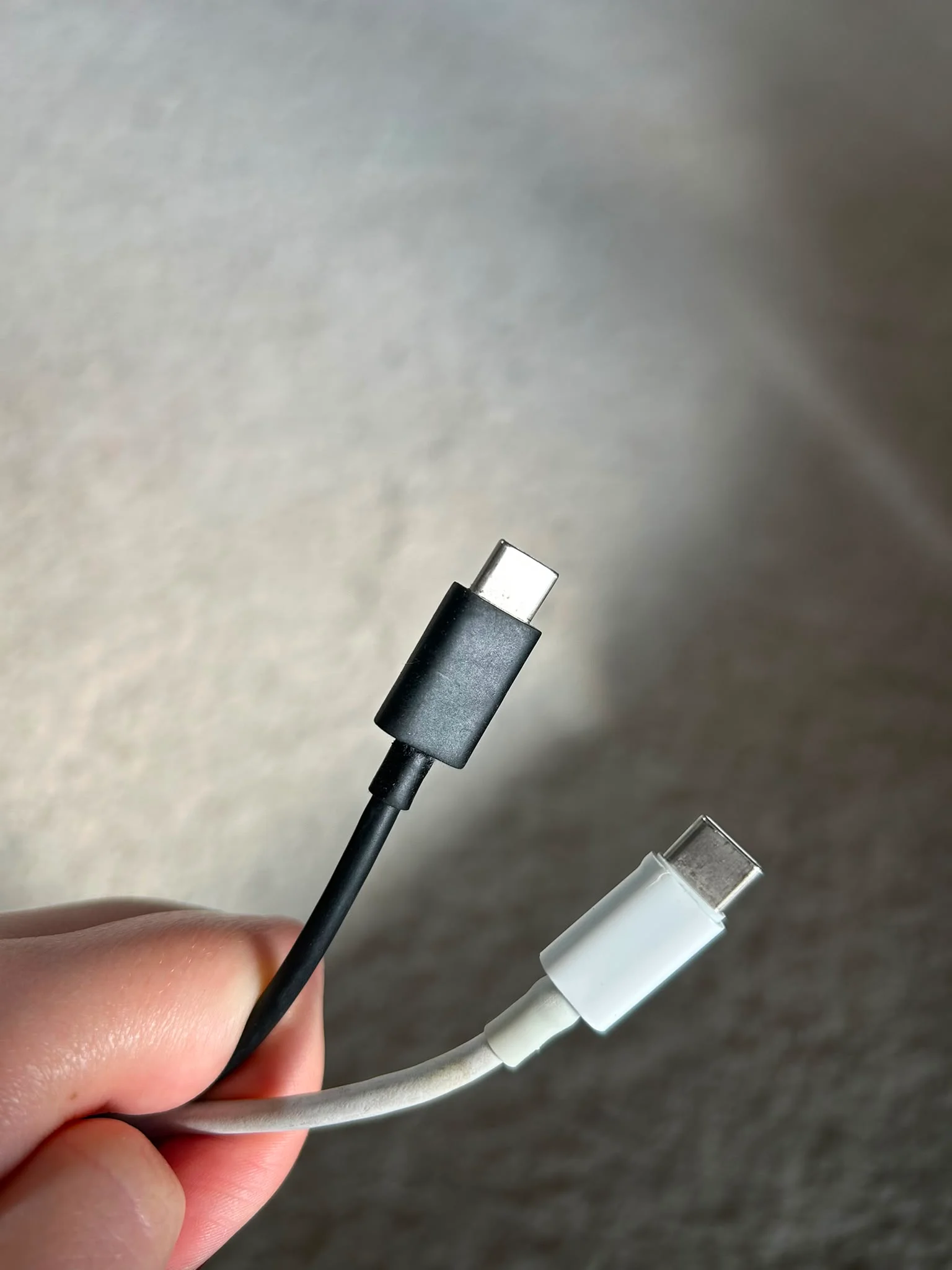
USB-C cables have become the standard connector for everything from smartphones to laptops, but don’t let the identical-looking cables fool you.
Just because two USB-C cables fit the same port doesn’t mean they’ll perform the same way.
In fact, choosing the wrong cable could mean painfully slow charging, sluggish file transfers, or even a monitor that refuses to connect.
Lots of people look to the charging block as the main culprit for slow charging, but it turns out it may be a different factor causing incidents.
USB-C cables – what to look out for when it comes to charging and speed
One of the biggest misconceptions about charging your gadgets is that USB-C represents a performance standard.
It doesn’t.
USB-C simply refers to the shape of the connector, but it turns out that the familiar reversible plug can have wildly different capabilities depending on how the cable was built.
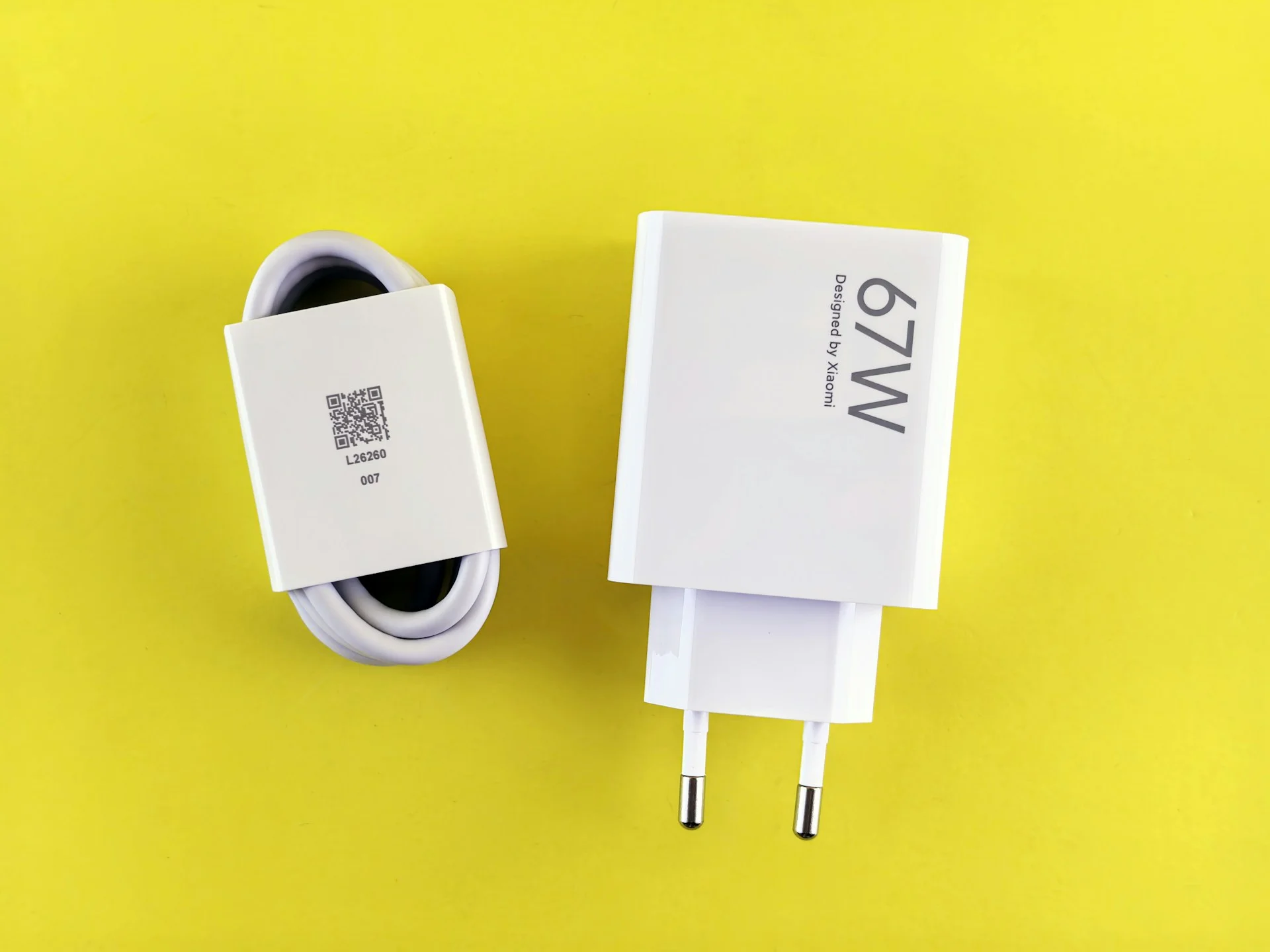
Some cables are designed almost exclusively for charging a phone, while others can deliver high-speed data transfers, power gaming laptops, or even connect to external displays.
That difference becomes obvious when transferring large files.
Many basic USB-C cables are limited to USB 2.0 speeds of 480Mbps, which is perfectly adequate for charging devices or syncing small files.
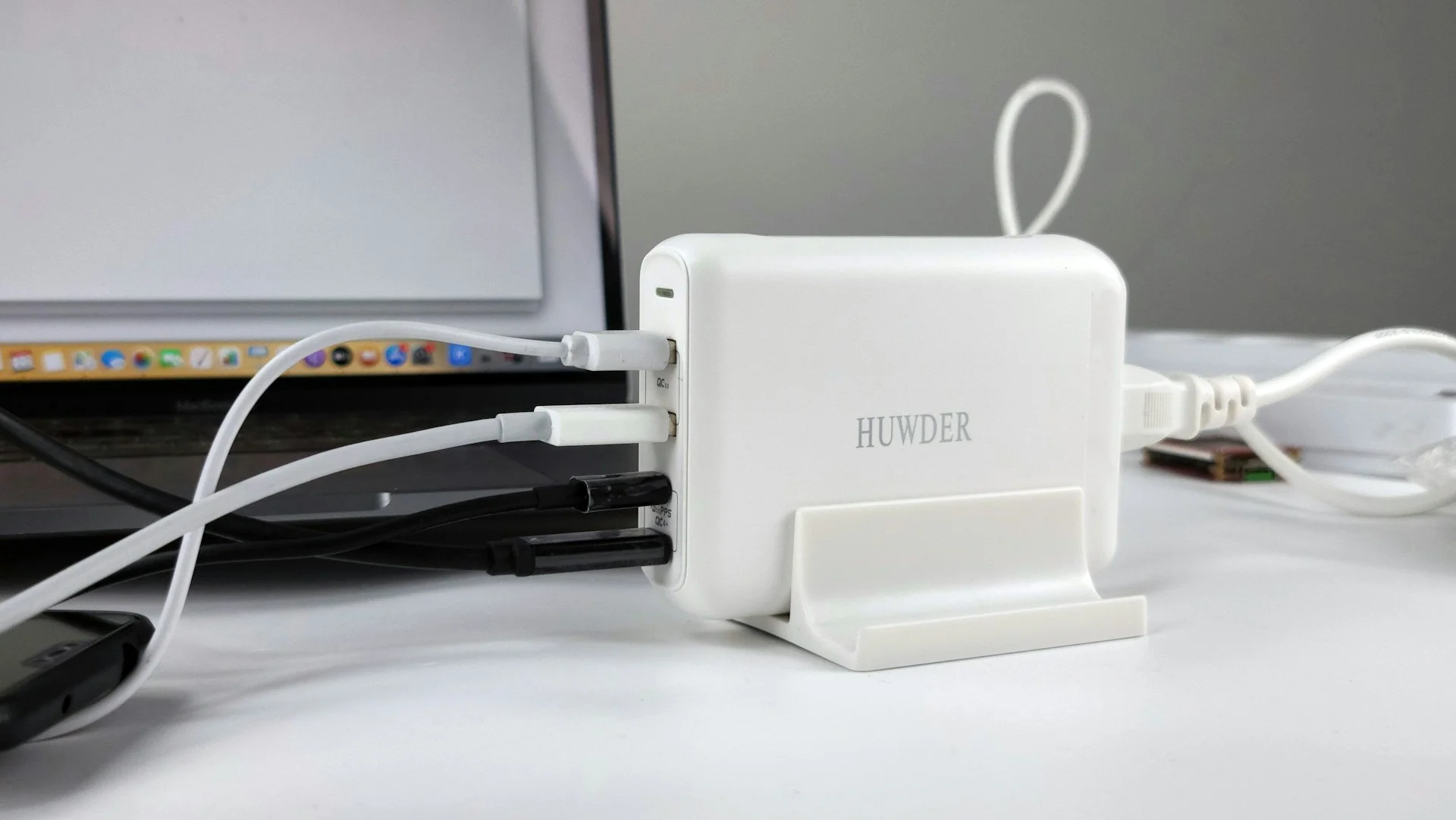
But higher-end cables supporting USB 3.2 can reach between 5Gbps and 20Gbps, while certified USB4 cables can deliver speeds of up to 40Gbps.
Of course, your cable is only one part of the equation.
Your laptop, phone, storage drive, and cable all need to support the same standard, otherwise, everything drops down to the slowest component in the chain.
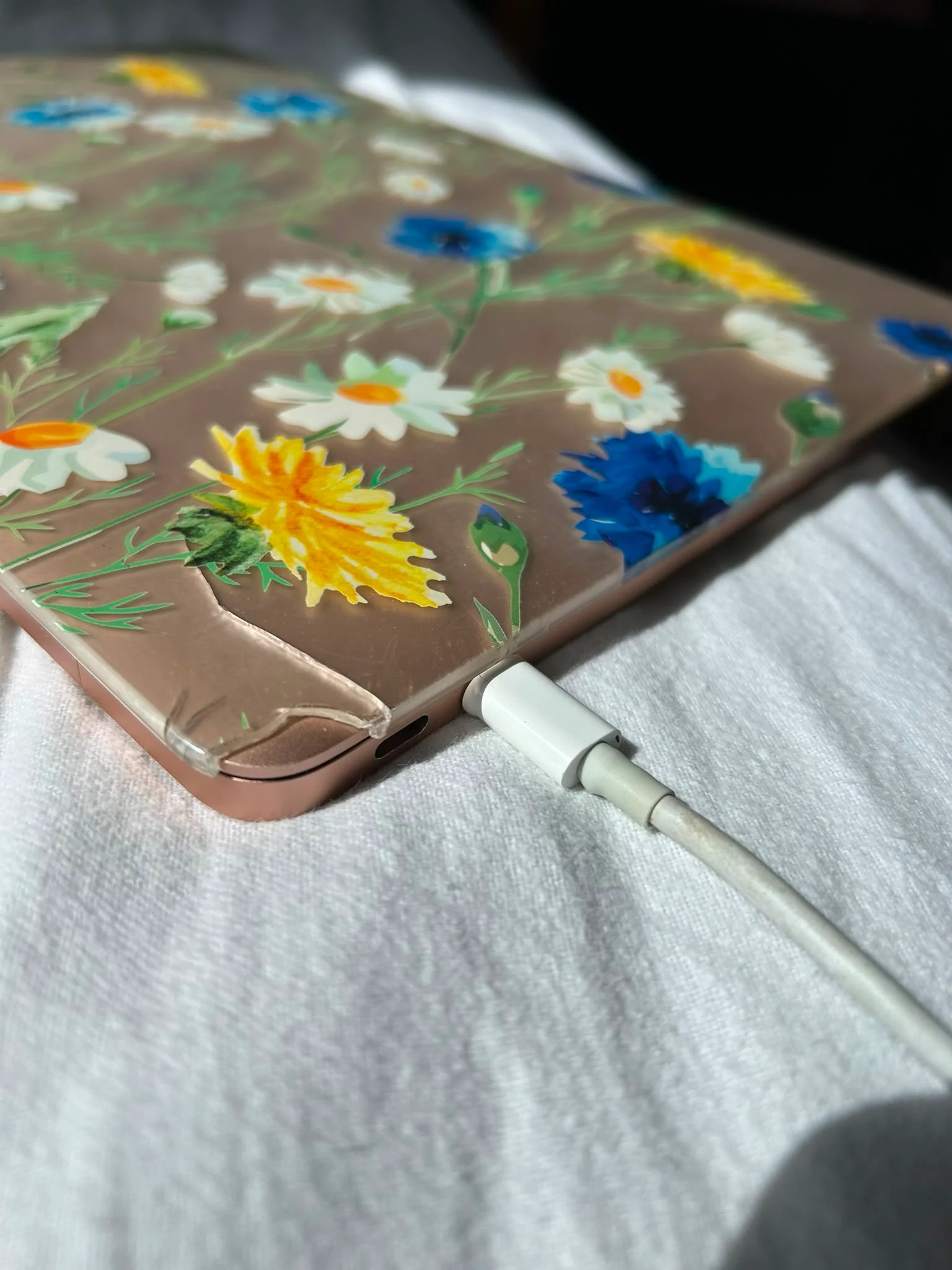
Charging is another area where cables can differ dramatically.
Higher-powered USB-C cables often include an electronic marker, or “e-marker,” chip that tells compatible chargers how much power the cable can safely handle.
Without that chip, charging speeds may be automatically reduced to protect the cable.
Your charger can even affect your gadget’s display
Another feature many people assume every USB-C cable supports is video output.
Unfortunately, that’s not the case.
While some USB-C cables are capable of carrying DisplayPort or Thunderbolt signals to external monitors, many cheaper cables simply don’t include that functionality.
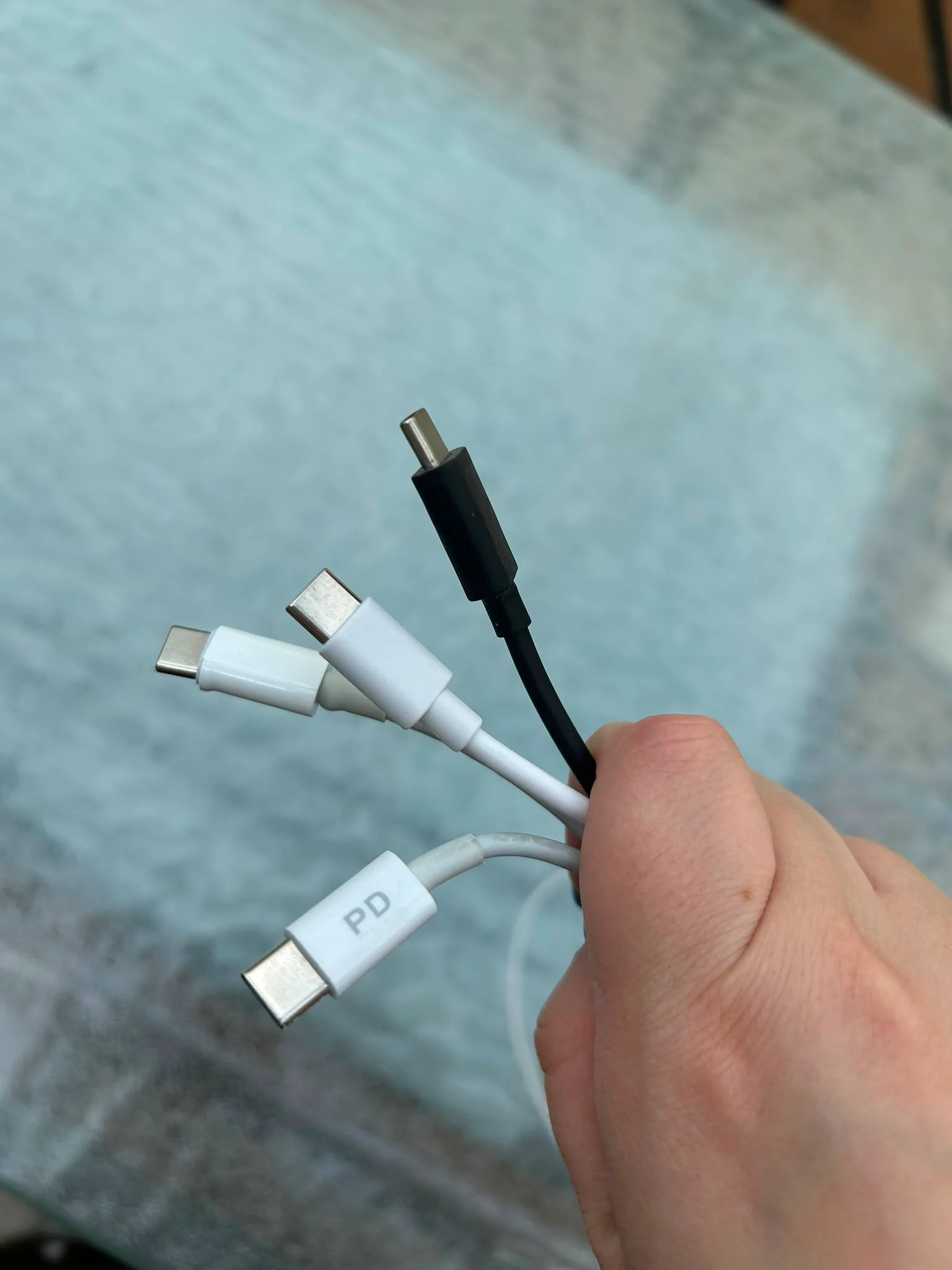
That means you can plug your laptop into a monitor using one cable and have everything work perfectly, then swap it for another seemingly identical cable and be left staring at a blank screen.
It’s a surprisingly common source of frustration because manufacturers don’t always make these capabilities obvious on the cable itself.
What to look for
Instead, shoppers often need to check the specifications on the packaging or product listing to confirm support for fast charging, high-speed data transfer, video output, or Thunderbolt compatibility.
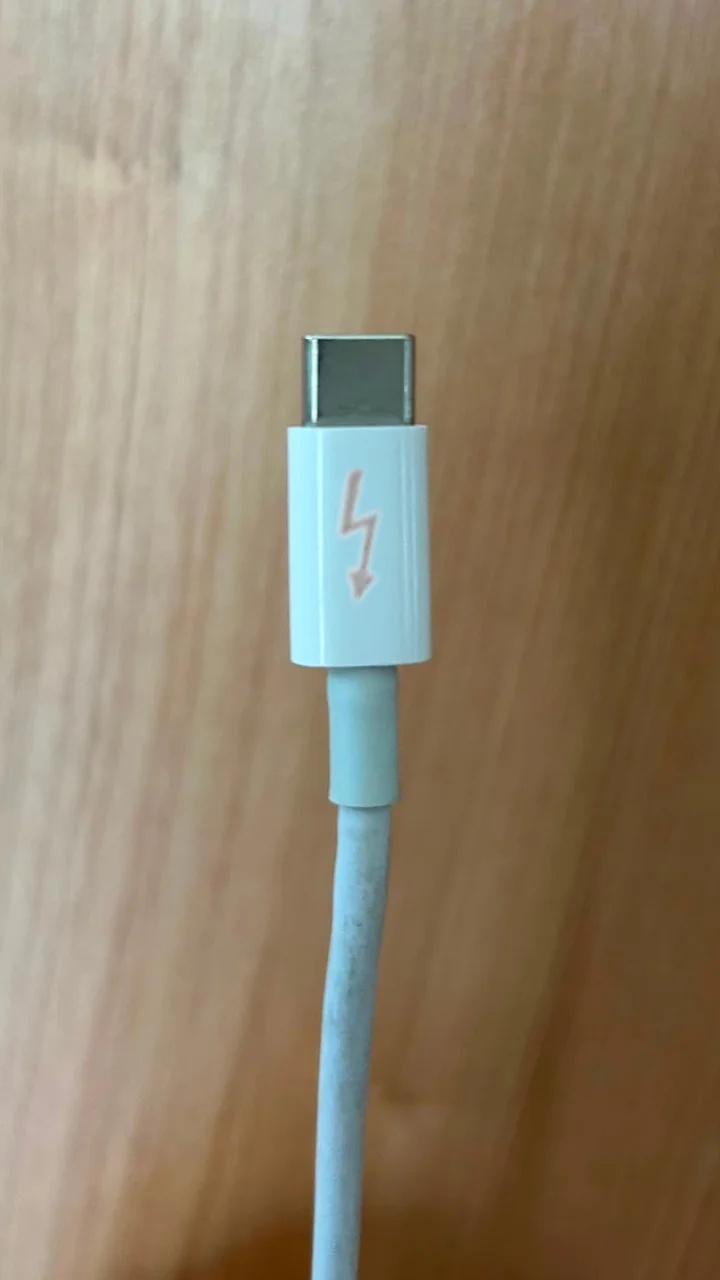
For anyone who regularly moves large files, connects external displays, or fast-charges multiple devices, keeping different cables for different tasks may save plenty of headaches.
After all, all USB-C cables might look the same, but what happens after you plug them in depends entirely on what’s hidden inside.