Your TV may be watching you without you knowing and this is how to stop that from happening
 Claire Reid
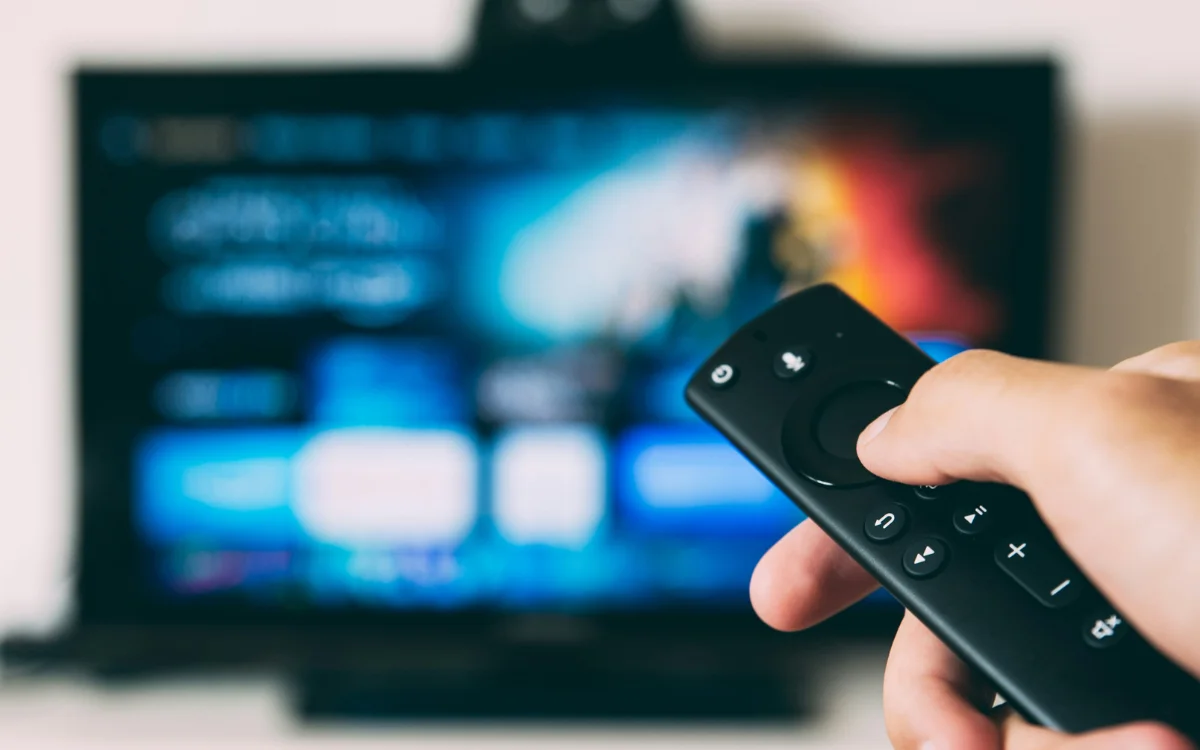

Picture the scene: you’ve just got home from work, you grab yourself some snacks and a drink, and flop down on the couch to watch some TV, but did you know your TV might actually be watching you back?
You’ve probably already learned that websites and social media are regularly tracking your online activity and collecting your data.
But you might not have even considered that your TV could be doing the same.
Thankfully, if you’d rather not be tracked while watching, then you can turn it off, but it might require a bit of digging.
Enter our competition to win a stunning 2006 Ford GT or $400,000 cash!
Your smart TV could be tracking what you’re watching without you knowing
If you have a smart TV – and let’s face it, in 2026, who doesn’t? – then it probably came with a default setting that tracks what you are watching, even when you’re offline.
The feature is known as Automated Content Recognition, or ACR, and is typically used to collect customer data for advertising and content suggestions, PC Mag reports.

Streaming services, like Netflix and Disney+, already track what you’re viewing as soon as you choose; that’s how they’re able to make handy suggestions about shows that you might like.
However, ACR goes one step further than this and is able to listen to what you’re watching.
So it doesn’t matter if you’re streaming Netflix, watching live sport, or have popped in a Blu-ray; it’ll still be able to determine what you’re tuning into.
The feature is fairly intrusive, and while there are probably plenty of folks who don’t really care, there are also those who would rather their private viewing habits weren’t tracked.
If you fall into the latter category, then you’ll be happy to know that you can turn ACR off, but you might need to burrow into the menu settings to find it.
Don’t fancy being tracked? Here’s how to turn it off
To make things a little more complicated, not all TV manufacturers refer to Automated Content Recognition by that name; LG, for example, calls it Live Plus.
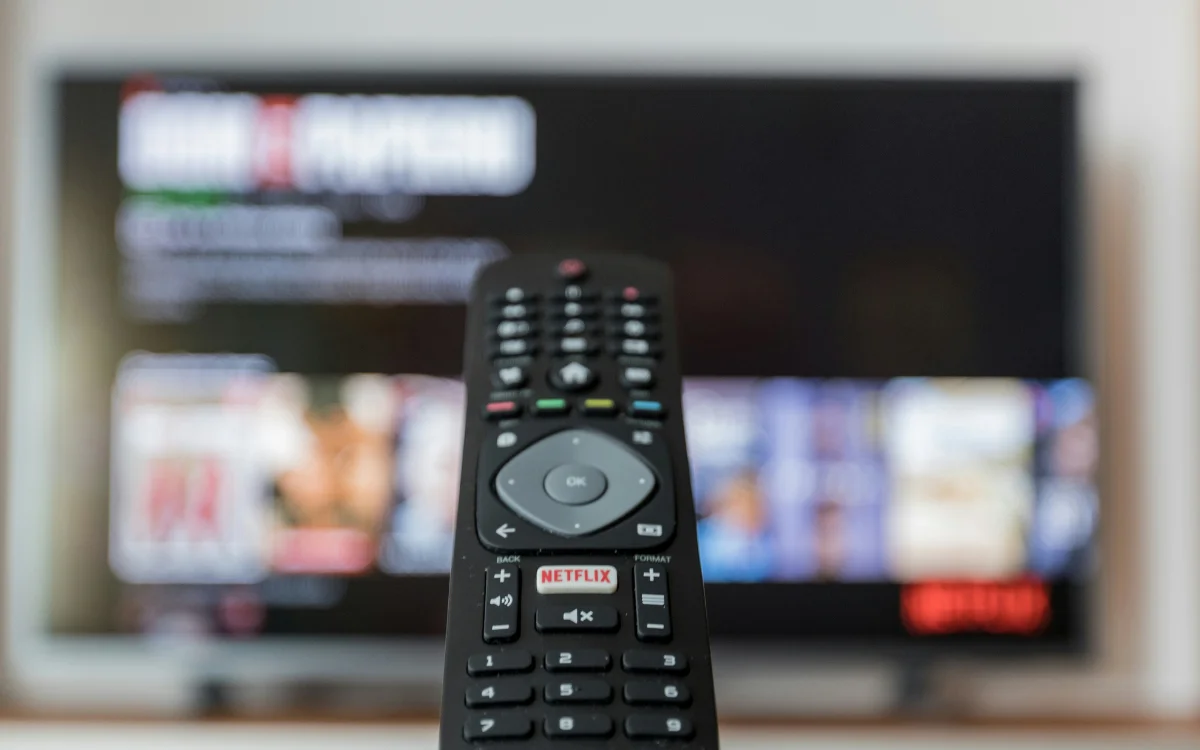
But here’s how to disable it on some of the more popular devices:
- Amazon Fire: go into Settings, Preferences, Privacy, Settings, and then find Automatic Content Recognition and toggle it off. Then go into Device Usage Data, Collect App, and turn off Over-The-Air Data
- LG: go into Settings, General, System, Advanced Settings, and toggle off Live Plus
- Samsung: go to Settings, All Settings, General & Privacy, Terms & Privacy, and turn off Viewing Information Service and Interest-Based Advertising
- Sony: go to Settings, Initial Setup, find either Samba Interactive TV or Interactive TV Settings, and turn it off
- Roku: go to Settings, Privacy, Smart TV Experience, and switch off Use Information for TV Outputs
DISCOVER SBX CARS: The global premium car auction platform powered by Supercar Blondie