If your iPhone is running out of battery by 2pm every day then changing these settings will have an immediate impact

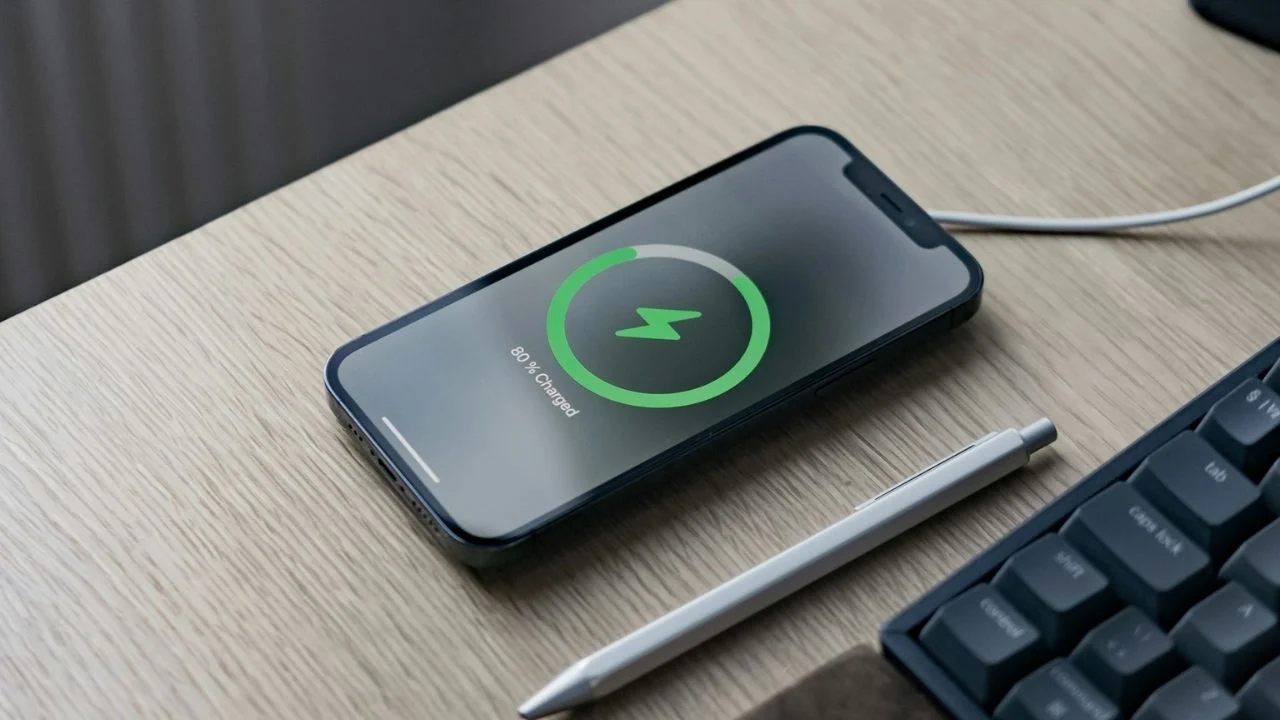

If your iPhone is running out of battery by the early afternoon, you might not need a new phone, however much you might want it.
A handful of hidden settings could be draining your phone without you even realizing it.
The good news is that most of them take less than a minute to change.
Here are 10 simple iPhone settings that can make an immediate difference to how long your phone lasts.
Start by starving the battery-hungry features on your iPhone
1. Turn off Background App Refresh
Background App Refresh allows apps on your Apple gadgets to update their content even when you’re not using them.
While it’s useful for some apps, many don’t need to constantly refresh in the background, and the feature can eat into your battery throughout the day.
Head to Settings > General > Background App Refresh and either turn it off completely or limit it to Wi-Fi only.
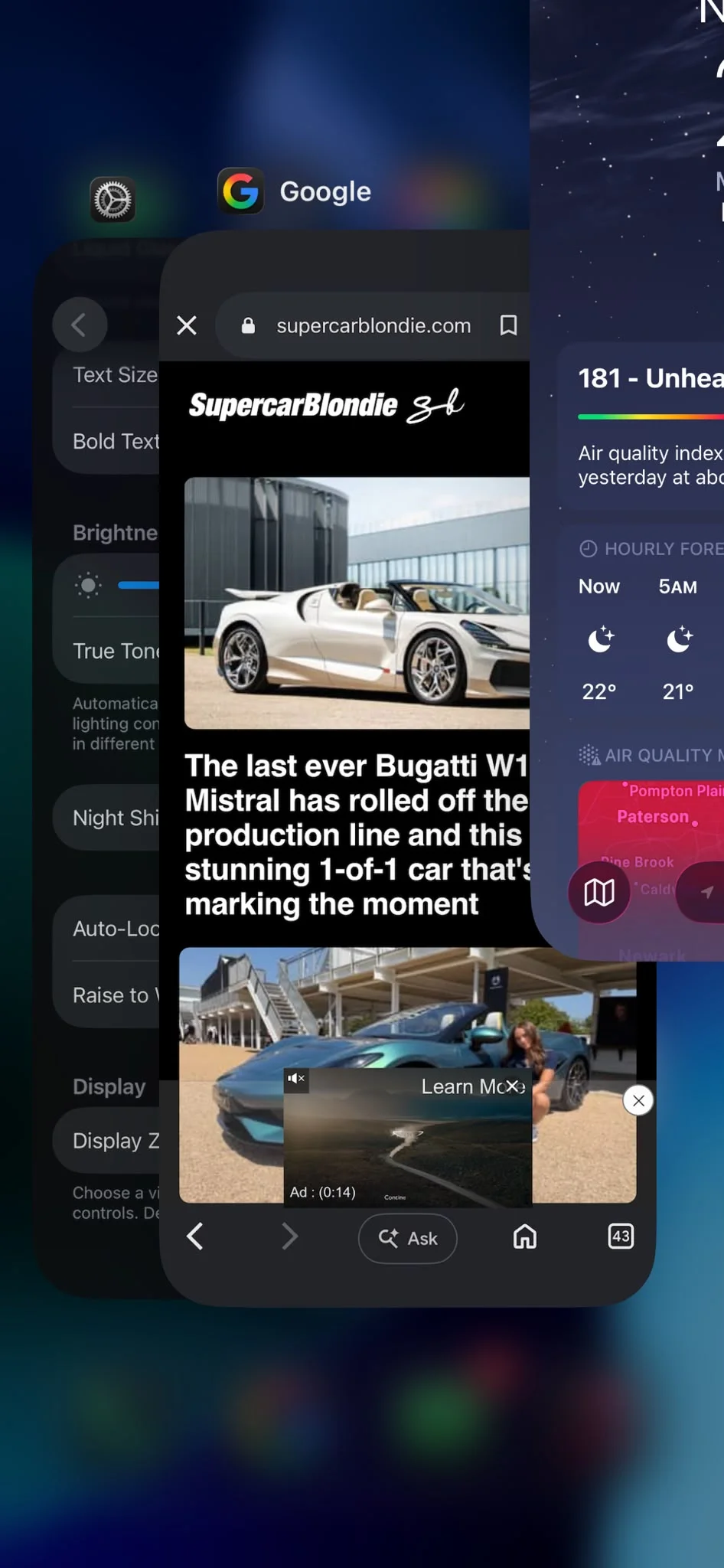
2. Stop force-closing your apps
It might seem logical to swipe away every app after you’ve finished using it, but Apple says this can actually use more power.
When you force close an app, your iPhone has to fully reload it the next time you open it, which requires more processing power than simply resuming it from where you left off.
Unless an app has frozen or stopped responding, it’s usually best to leave it alone.
3. Review your Location Services
Many apps request location access even when they don’t really need it.
Constant GPS tracking is one of the biggest killers of any smartphone.
Go to Settings > Privacy & Security > Location Services and check which apps have access.
Switching apps to While Using the App instead of Always can significantly reduce battery usage.
4. Turn off the Always-On Display
If you own an iPhone with an Always-On Display, such as the iPhone 14 Pro or newer Pro models, disabling it can save battery over the course of the day.
The feature keeps part of your screen illuminated even when the phone is locked, which uses a small but constant amount of power.
You can disable it by heading to Settings > Display & Brightness > Always On Display.
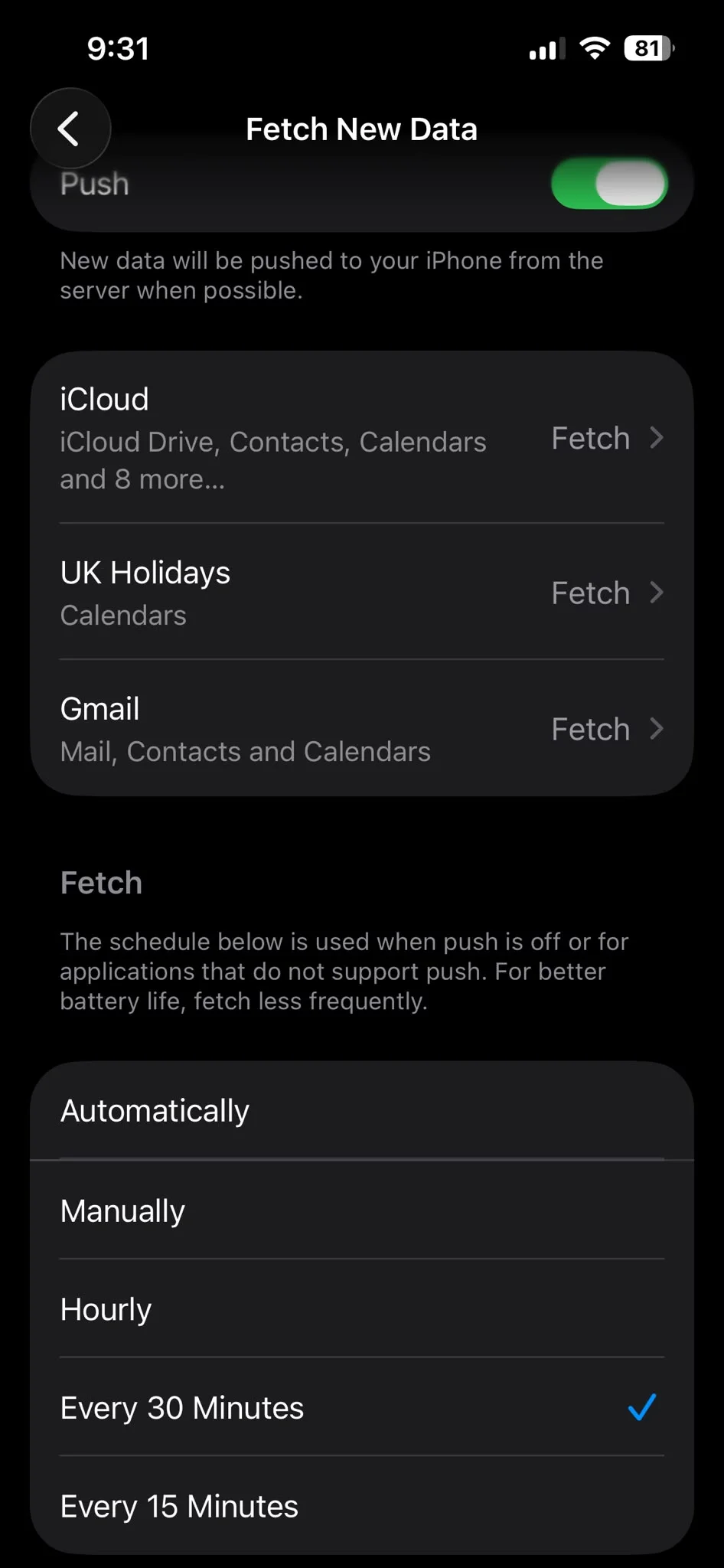
5. Change Mail from Push to Fetch
If your email accounts are constantly checking for new messages, your battery will take a hit.
Instead of using Push, switch your accounts to Fetch so your iPhone checks for new emails at set intervals.
Go to Settings > Apps > Mail > Mail Accounts > Fetch New Data and choose a schedule that suits you, such as every 30 minutes or hourly.
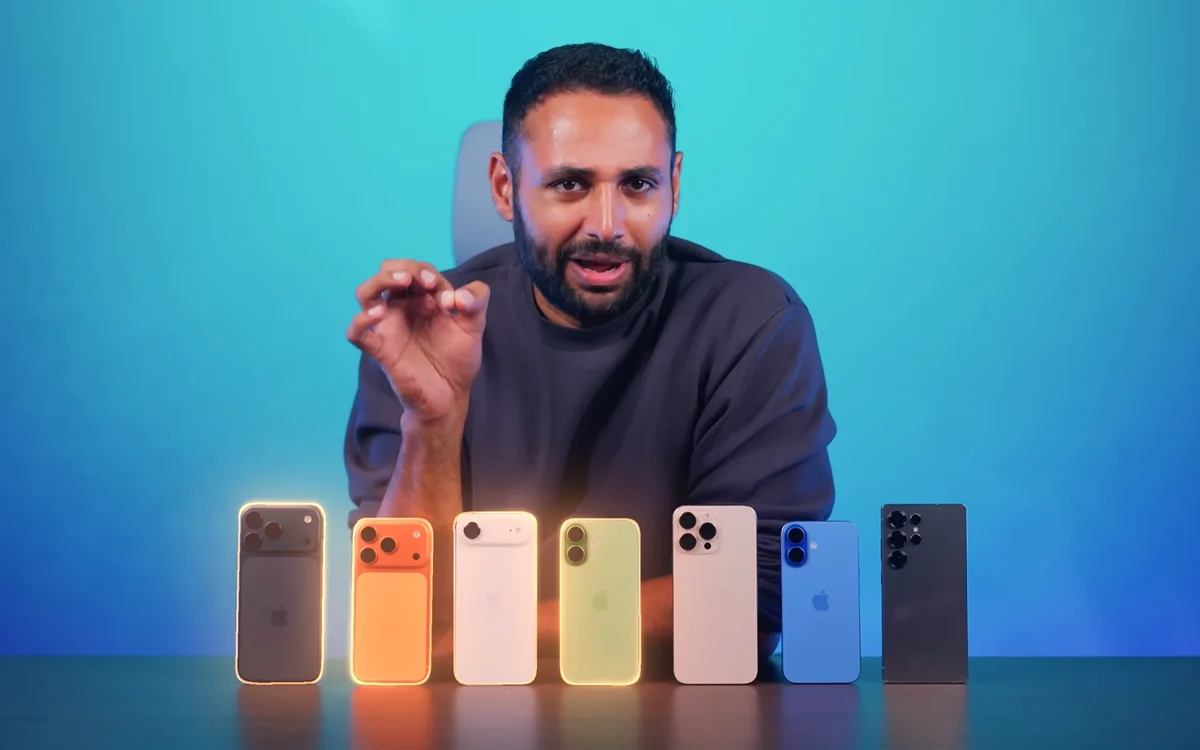

Thanks to these things, your iPhone battery will be saved
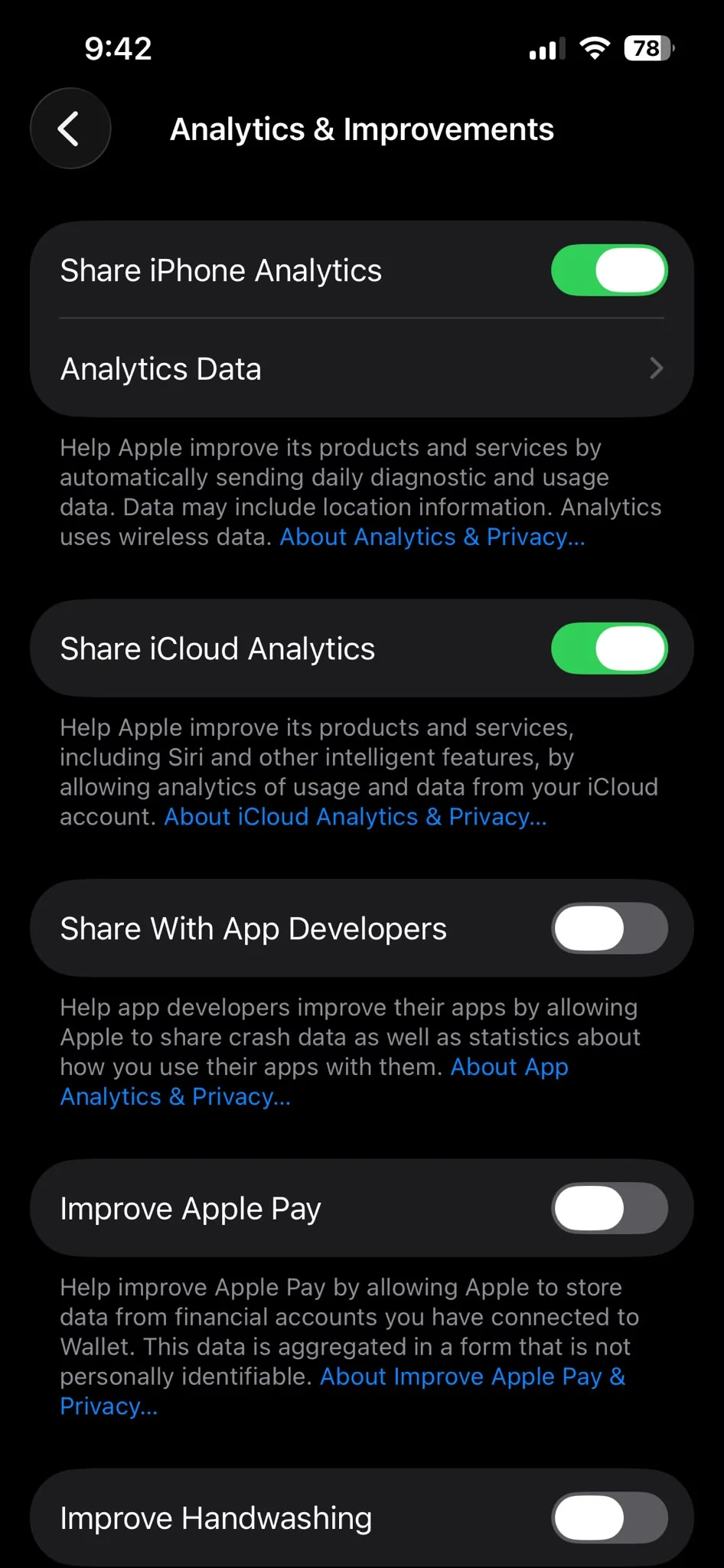
6. Turn off Analytics and Improvements
Apple collects anonymous diagnostic information to help improve its products, but sending this data requires background activity.
While the impact is relatively small, turning off Analytics can help squeeze out a little more battery life.
Navigate to Settings > Privacy & Security > Analytics & Improvements and disable any options you don’t want running in the background.
7. Switch your iPhone to 5G Auto
If your iPhone is set to use 5G all the time, it could be using more battery than necessary.
Apple includes a 5G Auto setting that intelligently switches between 5G and LTE depending on what you’re doing, helping to conserve power without noticeably affecting performance.
Go to Settings > Cellular > Cellular Data Options > Voice & Data and select 5G Auto.
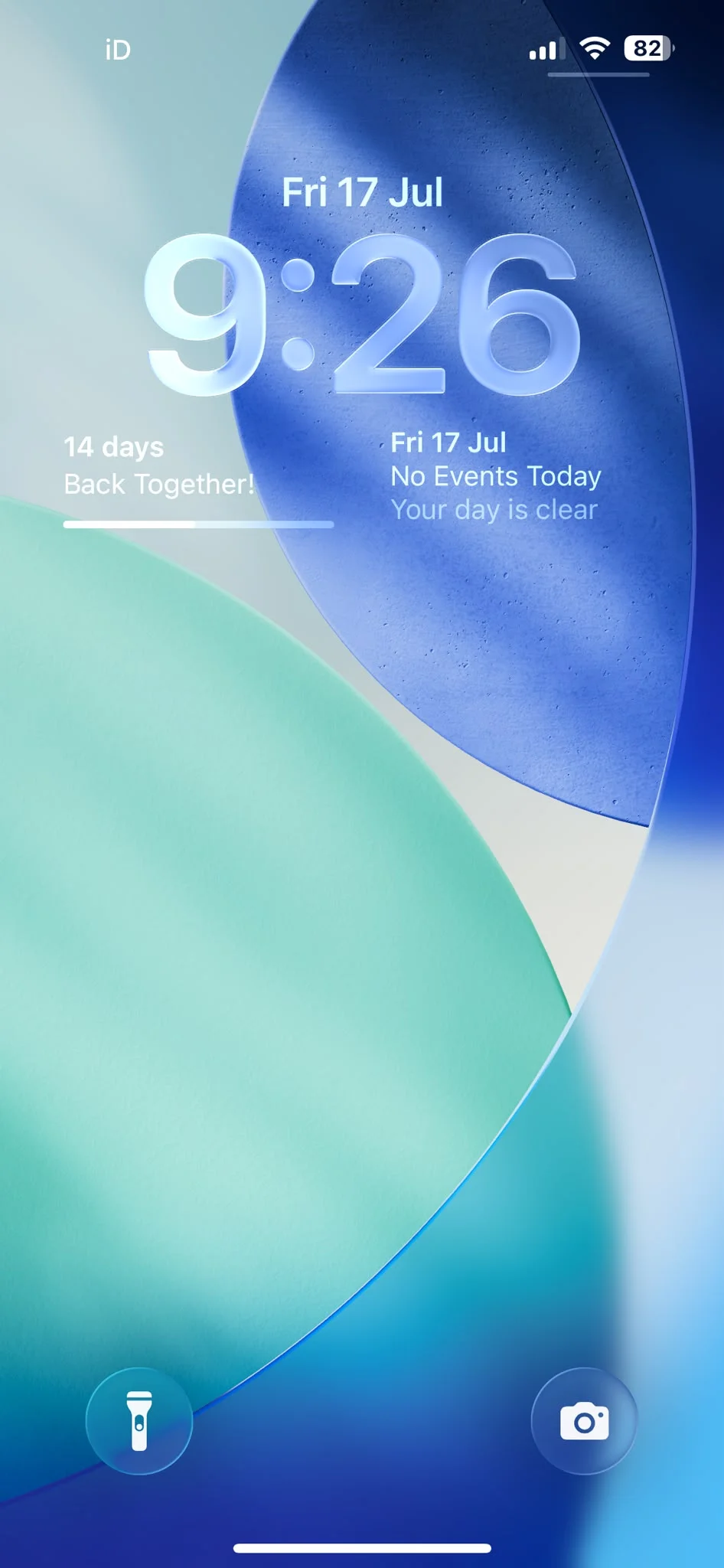
8. Remove unnecessary Lock Screen widgets on your iPhone
Lock Screen widgets are useful for checking information at a glance, but they also need to update in the background to stay current.
If battery life is your priority, removing widgets you rarely use can reduce background activity and help your iPhone last longer.
Press and hold your Lock Screen, tap Customize, and remove any widgets you don’t need.
9. Turn on Optimized Battery Charging
This setting won’t necessarily make your battery last longer during a single day, but it can help extend the overall lifespan of your iPhone’s battery.
Optimized Battery Charging learns your daily charging routine and delays charging beyond 80 percent until just before you usually unplug your phone, reducing long-term battery wear.
You can enable it by going to Settings > Battery > Battery Health & Charging and making sure Optimized Battery Charging is switched on.
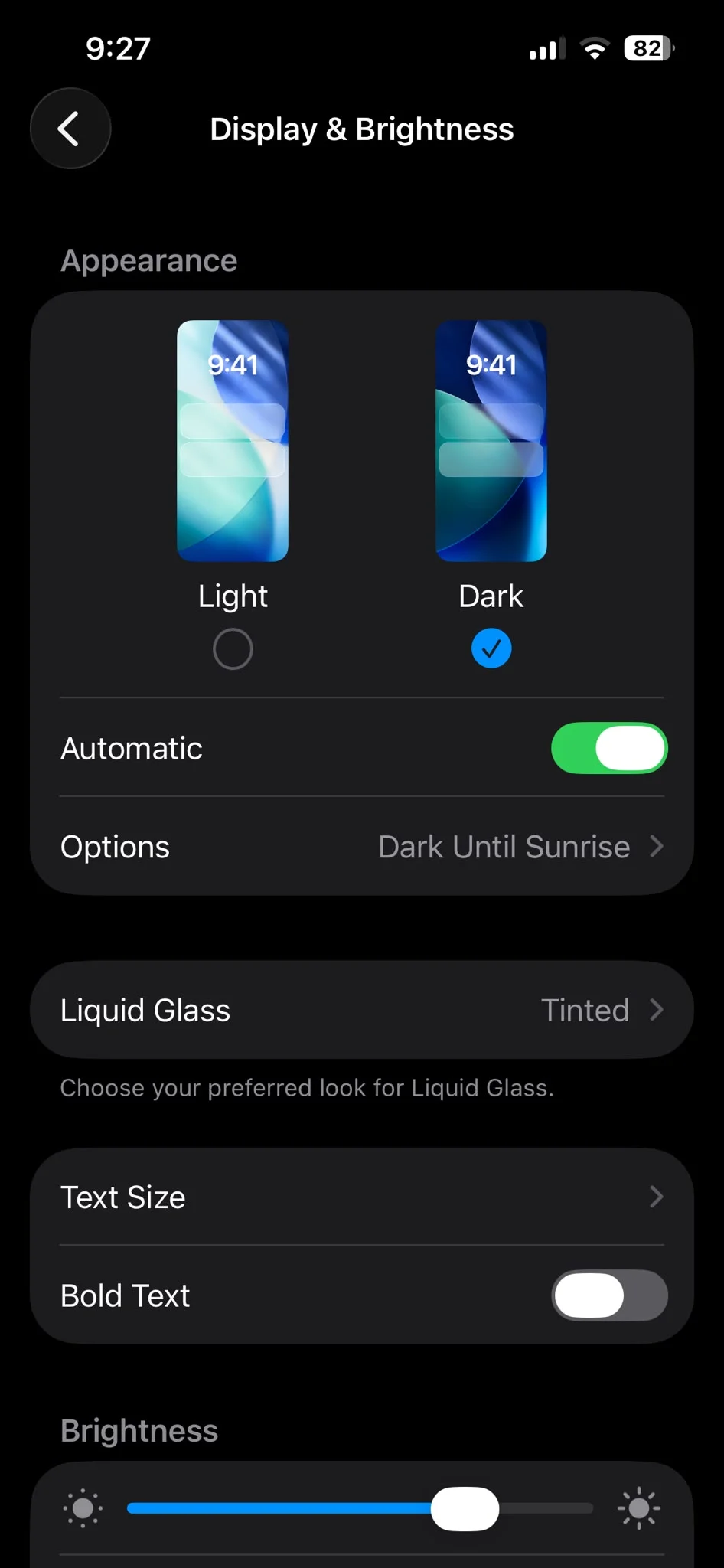
10. Switch to Dark Mode
If you have an iPhone with an OLED display, including most models since the iPhone X, switching to Dark Mode can help reduce battery consumption.
Unlike LCD screens, OLED displays only illuminate the pixels needed to show an image, so black areas use very little power.
Go to Settings > Display & Brightness and select Dark to make the switch.
Making just a few of these changes can noticeably improve your iPhone’s battery life, especially if your device is struggling to make it through a full day.
None of the settings is a magic fix on its own, but together they can dramatically reduce the risk of your phone dying and help your iPhone keep going long after 2 pm without needing to reach for a charger.