These hidden iPhone settings will help stop the new iOS 26.5 update from draining your battery

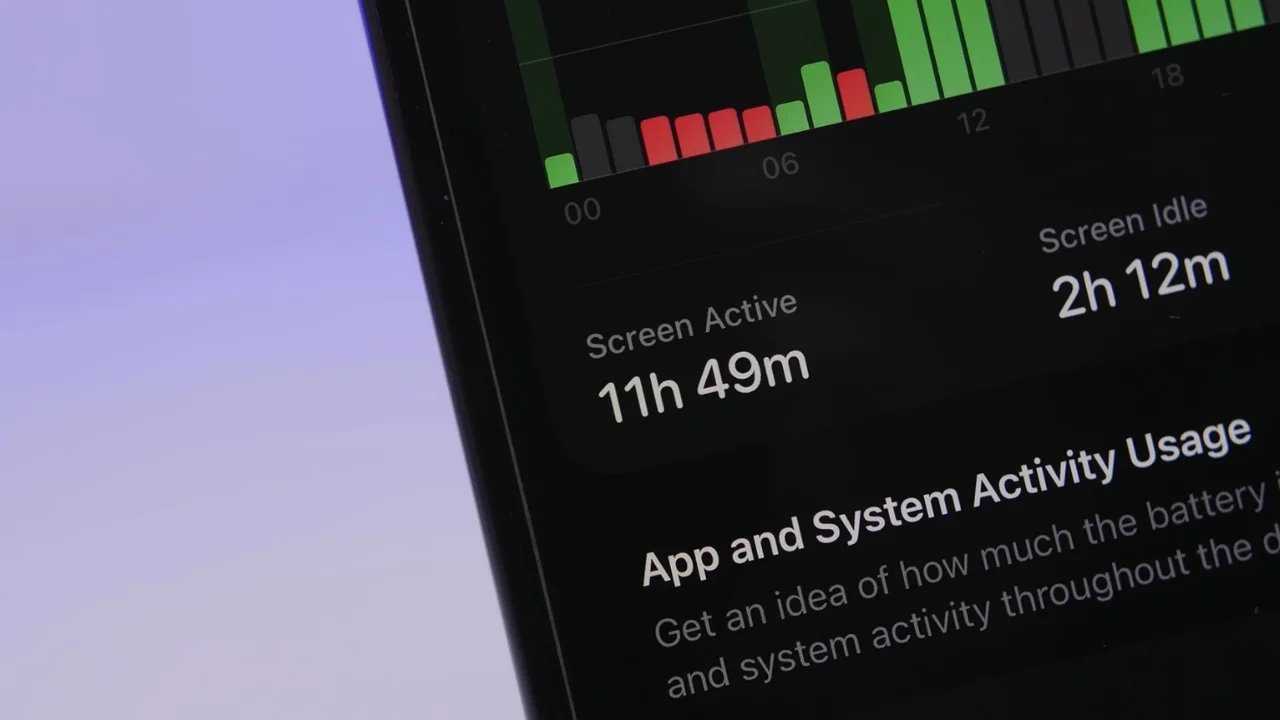

Apple’s latest iOS 26.5 update has brought loads of flashy new features to your iPhone, but for some users, there’s one major downside: their battery is disappearing faster than you can say ‘iOS update’.
Luckily, there are a bunch of hidden settings buried inside your iPhone that could seriously help stop the battery drain without forcing you to ditch all the cool new features.
Lots of things are battery vampires, like shiny animated wallpapers and sneaky background tools quietly eating away at your battery life.
But these quick fixes could help your iPhone actually survive the whole day.
These hidden iPhone settings for iOS 26.5 could save your phone’s life
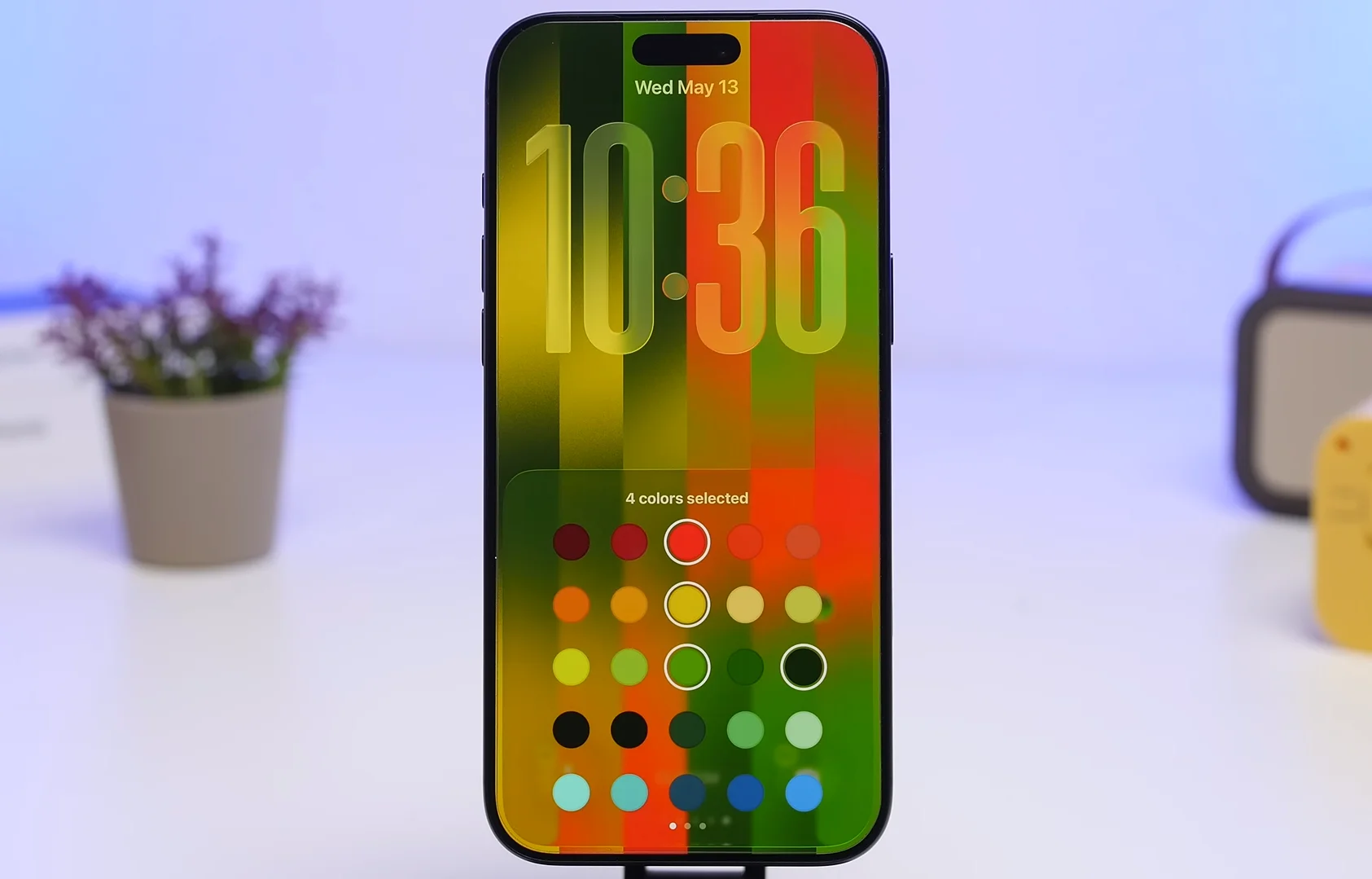
One of the biggest battery vampires on iOS 26.5 is Apple’s fancy new animated wallpaper system for your favorite gadgets.
According to iReviews on YouTube, sure, the wallpapers look incredibly slick with all the smooth transitions and glowing effects every time you lock or unlock your phone, but your battery is definitely paying the price.
Switching to a simpler wallpaper or cutting back on the animated effects can instantly help your iPhone last longer.
Another surprising culprit is the new Liquid Glass visual effects built into iOS 26 – the reflective animations and glossy effects look futuristic, but they also force your iPhone to work overtime behind the scenes.
Thankfully, Apple lets users tone things down by heading into Display and Text Size settings and enabling the option to reduce bright effects and your battery will probably thank you immediately.
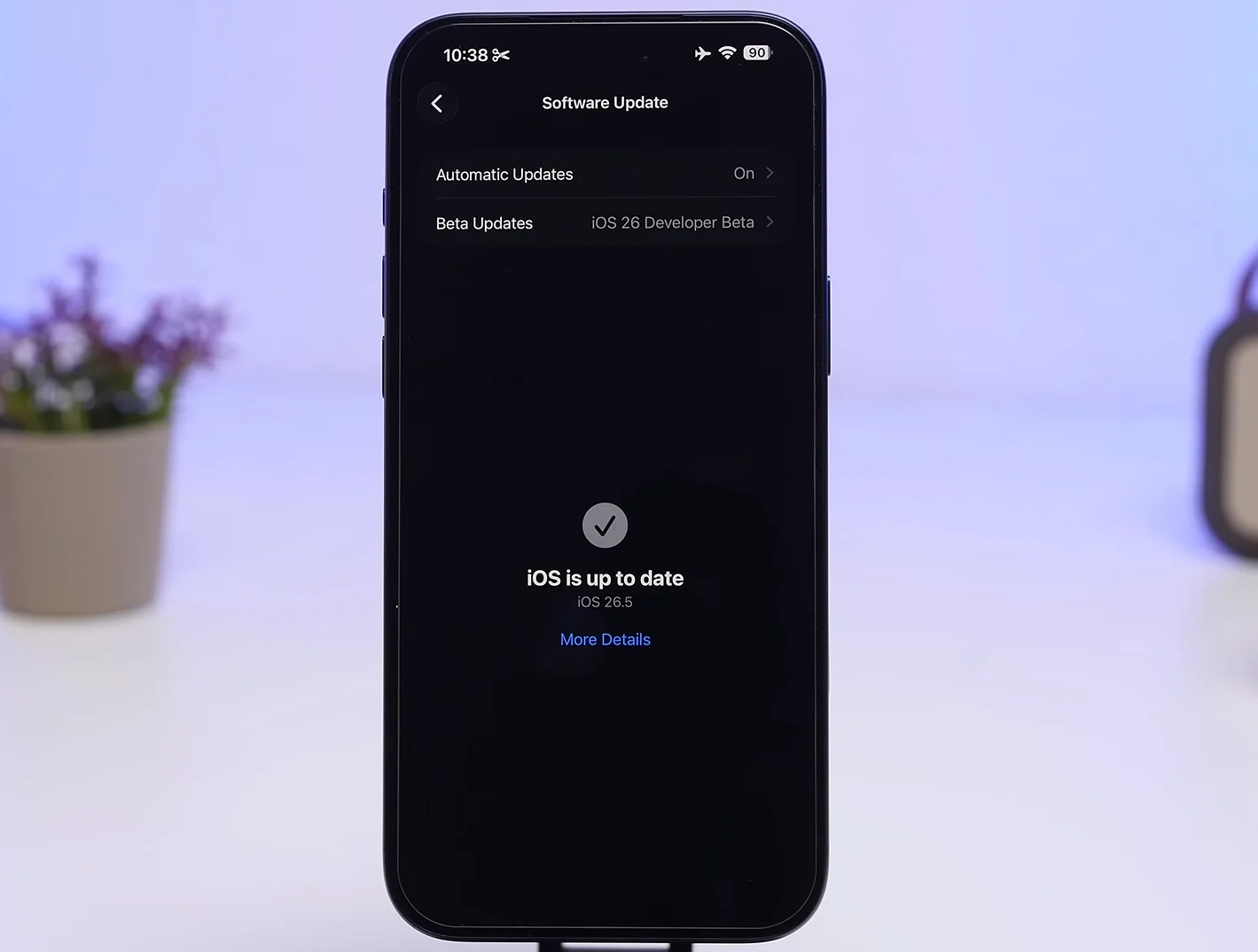
A lot of developers rush out optimization patches and fixes after the launch day of a new app, so if your apps aren’t updated, they may not play nicely with iOS 26.5 at all.
Turning on automatic app updates can help keep things running far more efficiently.
Widgets, notifications, and AI features could secretly be draining your battery
Widgets may look cool sitting across your lock screen, but some of them are basically tiny battery-eating machines.
Weather, stocks, and news widgets constantly refresh in the background, meaning your phone never really gets a break, so basically if you have pages full of widgets you barely even look at anymore, it’s time for a clean-up.
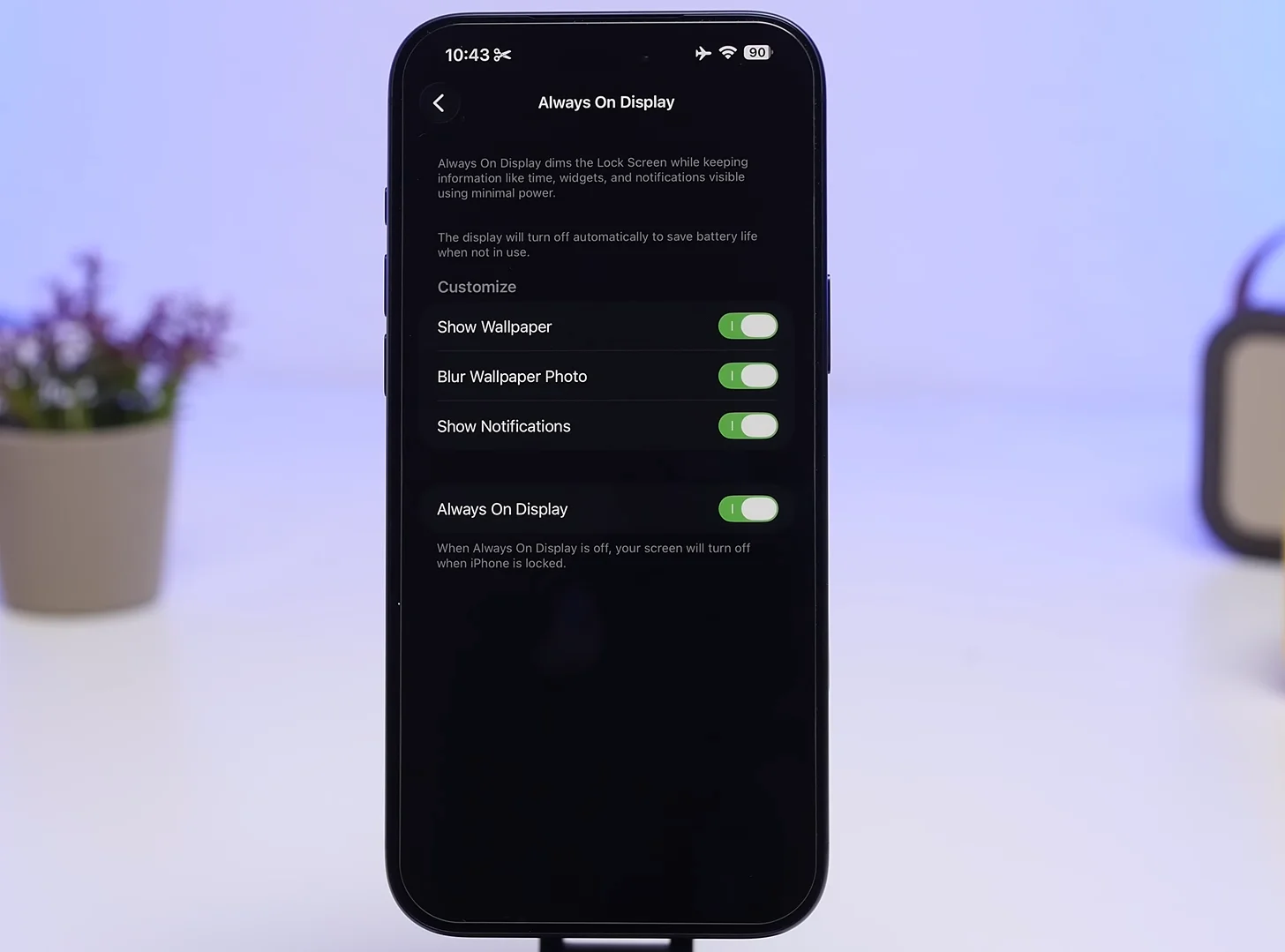
And then there’s Always-On Display, leaving the full wallpaper visible all day looks awesome, but it also drains more power, just keeping just the clock and notifications visible instead is a much smarter setup for battery life.
Notifications are another sneaky battery killer because every buzz, ping, and glowing screen wake-up forces your iPhone to jump into action.
Using Scheduled Summary or turning off notifications for apps you don’t care about can make a surprisingly huge difference.

Location Services can also hammer your battery harder than people realize, and turning off Precise Location for most apps, especially things that aren’t navigation-related, can seriously help.
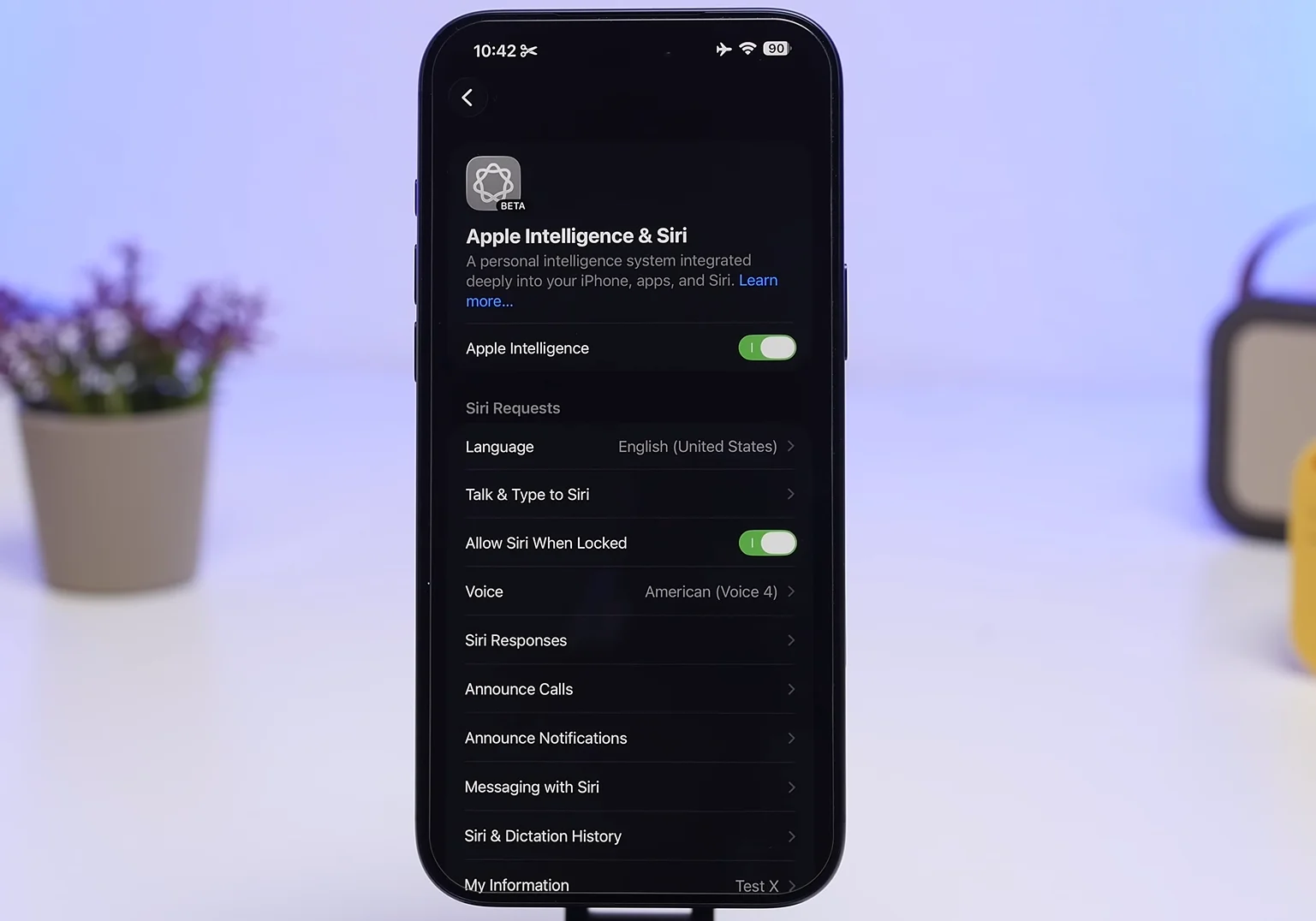
Finally, Apple Intelligence features are running in the background waiting for you to use them, but if you barely touch the AI tools, switching them off completely could give your battery life a much-needed boost.
Even if you don’t implement all of these tips, and just some of them, you might find that you’ll start seeing an improvement immediately, and it will stop your iPhone from feeling like it needs charging every five minutes.