If you have an iPhone 13, 14, 15 or 16 then iOS 26 could be slowing your phone down and these are the settings to change to stop that happening

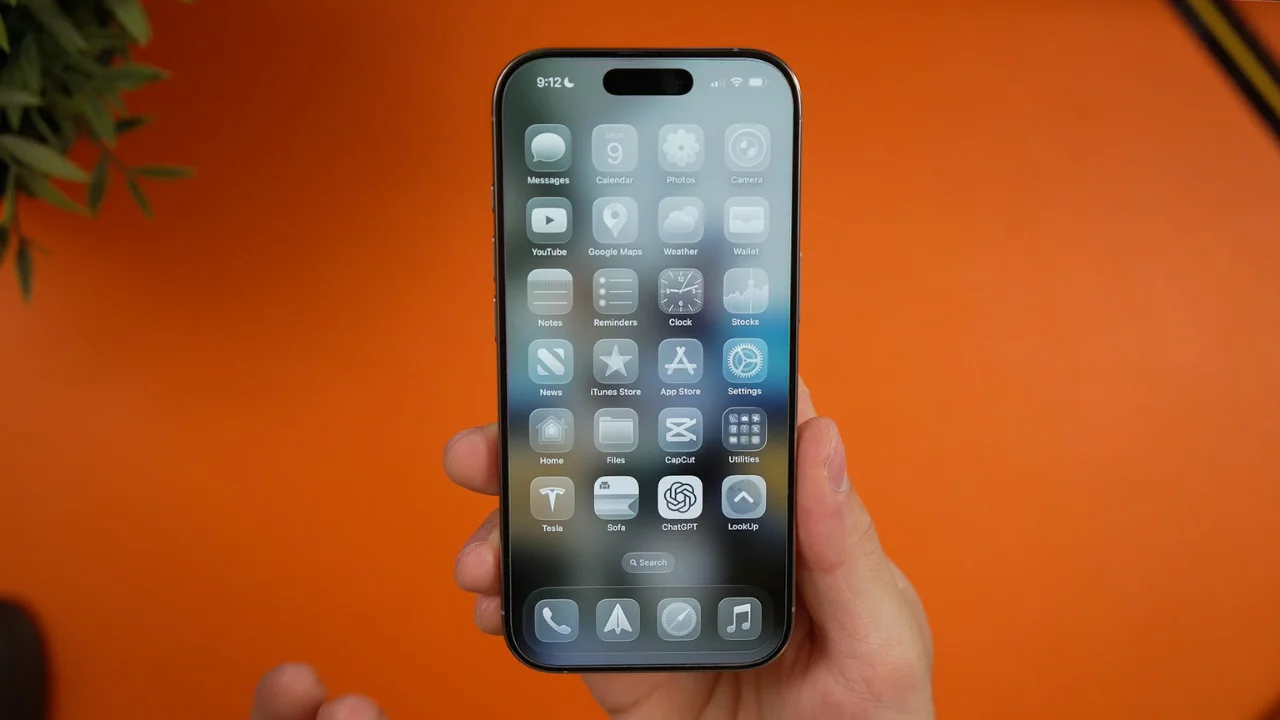

If your iPhone has suddenly started feeling slower after updating to iOS 26, you’re definitely not the only one.
Plenty of users with the iPhone 13, 14, 15, and even the latest iPhone 16 have noticed their phones running hotter, feeling laggier, and draining battery much faster than before.
The culprit isn’t necessarily your hardware.
Instead, it’s a combination of iOS 26’s new features that can put extra strain on your device.
Why iOS 26 could be slowing your iPhone down
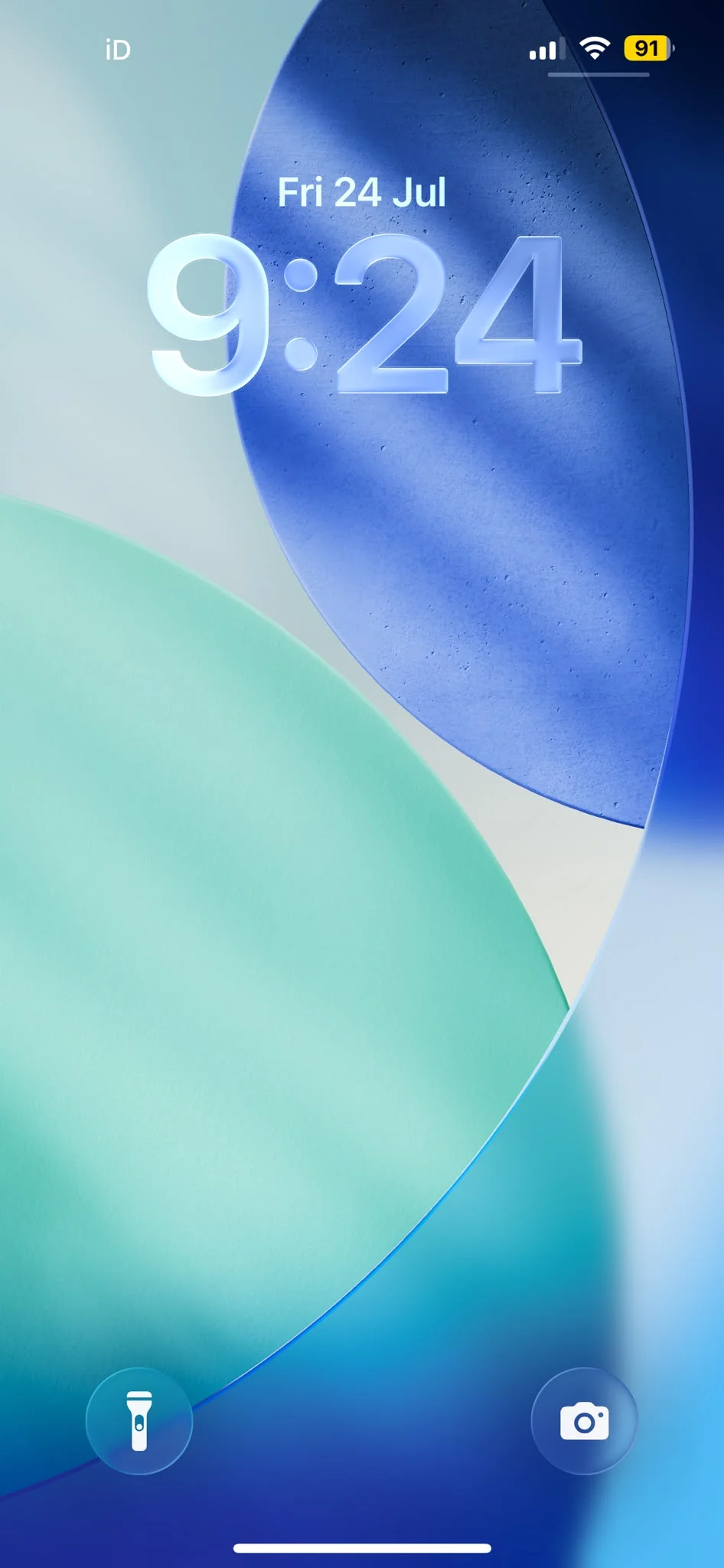
One of the biggest changes for gadgets in iOS 26 is Apple’s new Liquid Glass interface, which adds real-time transparency and blur effects across menus, notifications, widgets, and apps.
While it looks impressive, constantly rendering those visual effects requires extra graphics processing power.
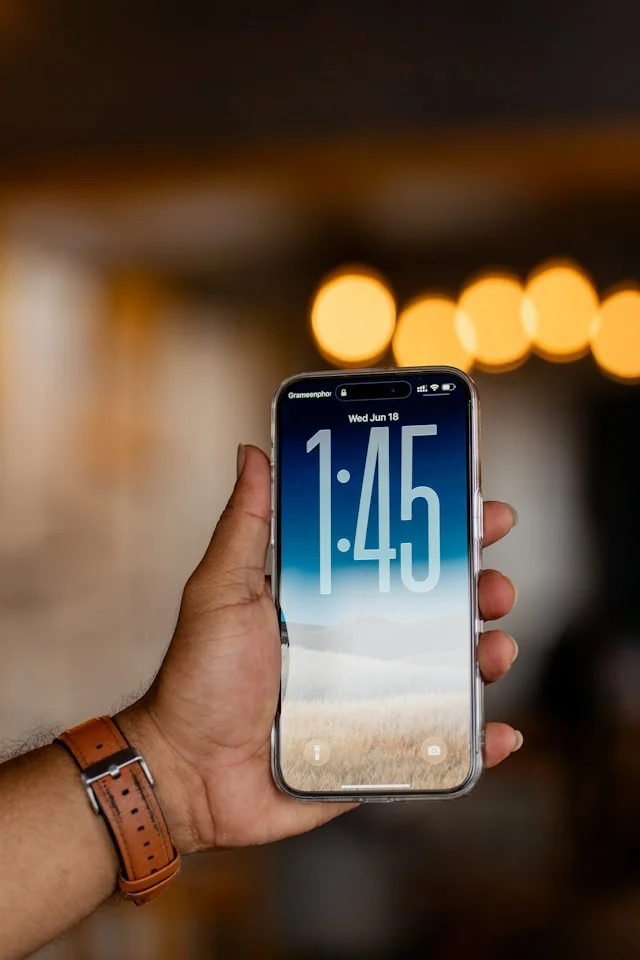
Alongside that, features like Apple Intelligence, background indexing after an update, motion animations, Bluetooth scanning, and dynamic wallpapers can all increase processor activity and battery usage.
The good news is that you don’t need to buy a new phone to improve performance.
A few simple settings can make a noticeable difference.
Six settings to change if your phone is in its snail era
1. Kill the glass renderer
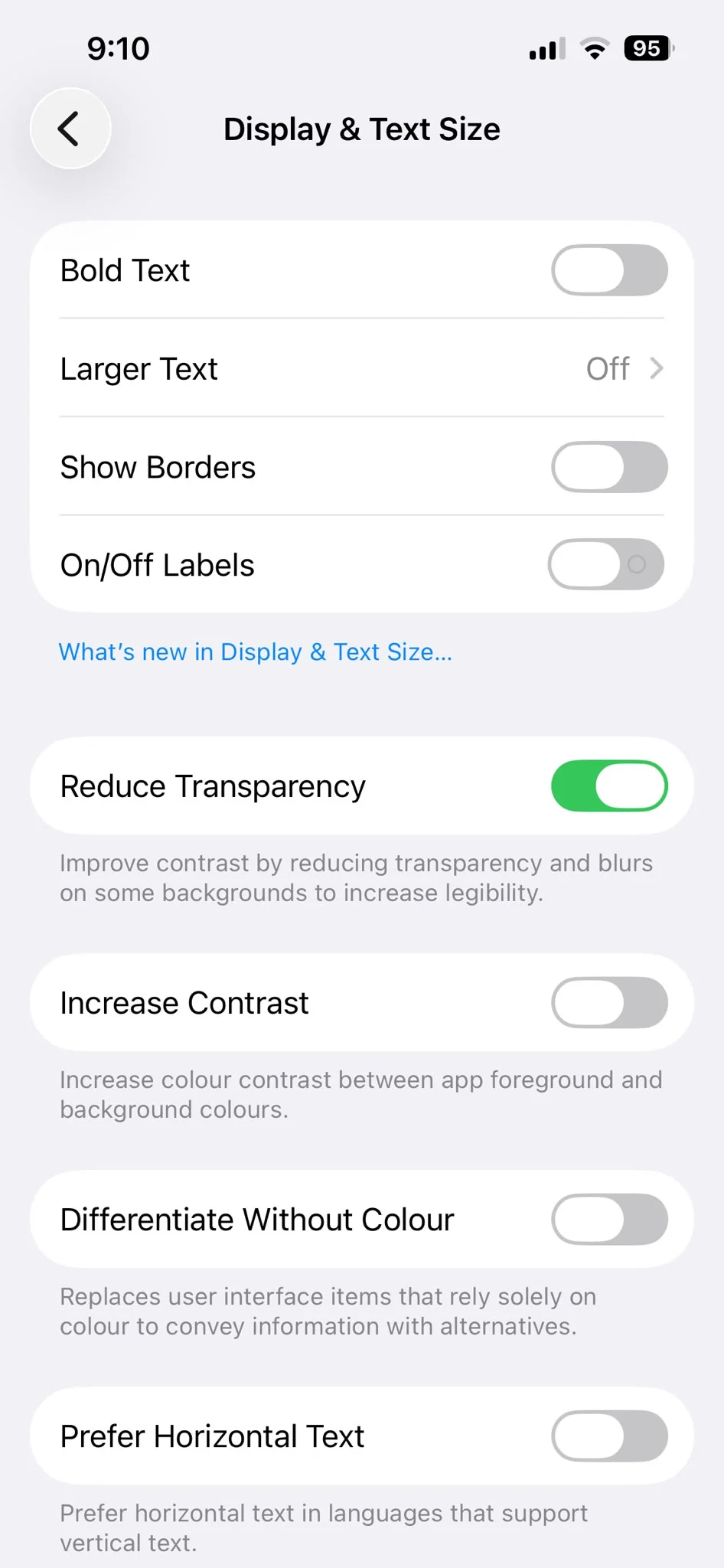
The easiest way to reduce the load from Liquid Glass is to enable Reduce Transparency.
Go to:
Settings > Accessibility > Display & Text Size > Reduce Transparency
This replaces many of the translucent menus with solid backgrounds, reducing the amount of real-time rendering your iPhone has to perform.
2. Turn off Apple Intelligence
Apple Intelligence can continuously process information in the background, especially if you’re using supported features.
If you don’t use it regularly, turning it off can free up processing power and improve battery life.
3. Kill motion animations
Animations might look smooth, but they’re another thing your iPhone has to render constantly.
Go to:
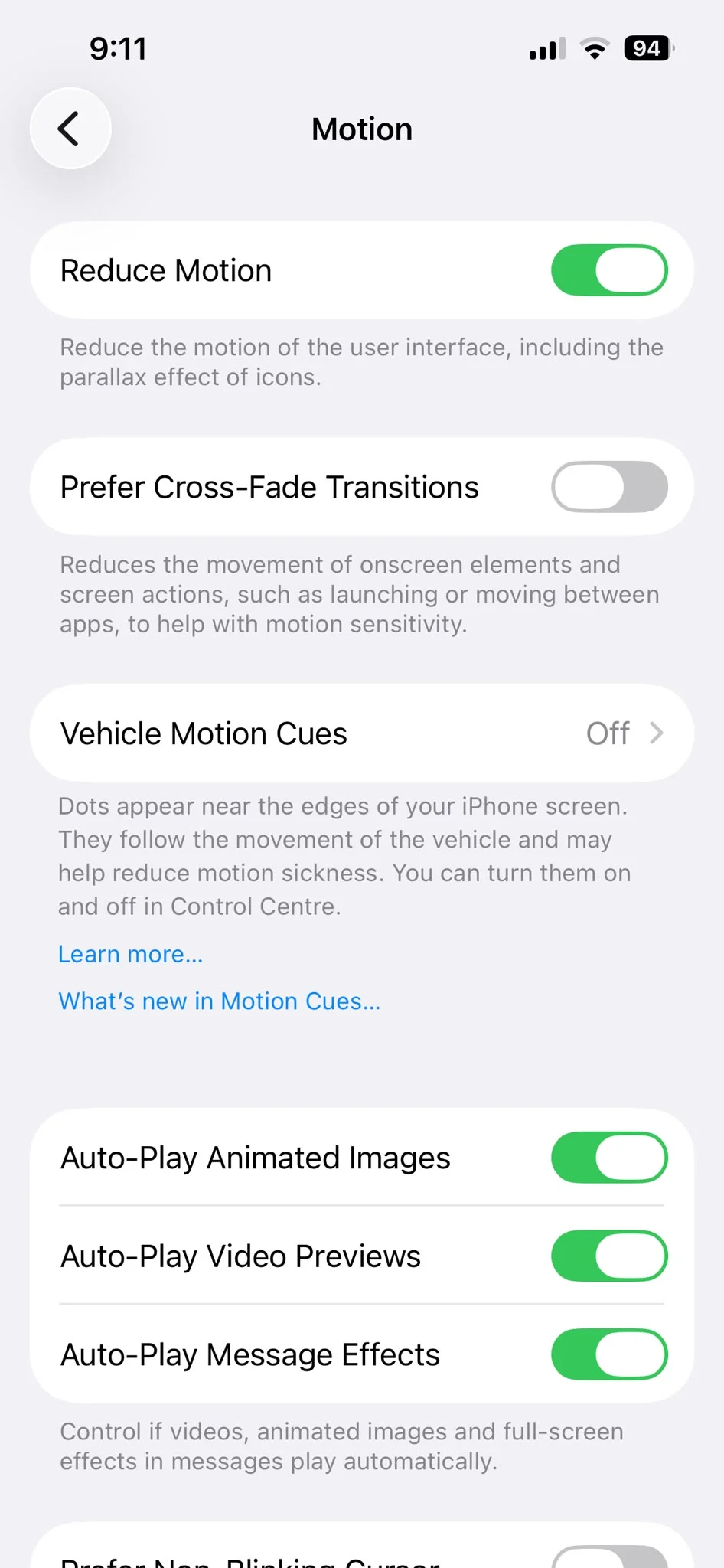
Settings > Accessibility > Motion > Reduce Motion
This replaces many of the animated transitions with simpler effects that require less work from the processor.
4. Switch to a still iPhone wallpaper
Live or animated wallpapers use more system resources than static images.
Choosing a simple still wallpaper can slightly reduce background activity while also helping preserve battery life.
5. Stop the Bluetooth beacon on your iPhone
Even if you aren’t connected to accessories, Bluetooth can continue scanning for nearby devices.
If you don’t need it, switching Bluetooth off from Settings instead of Control Center stops continuous background scanning and can save a little power.
6. Wait out the indexer
One of the biggest reasons iPhones feel sluggish after a major software update is that they’re rebuilding system indexes in the background.
Photos, Spotlight Search, Messages, and other apps all need time to reorganize data after installing iOS 26. This process can take several hours or even a couple of days depending on how much content is stored on your phone.
If you’ve only recently updated, the best solution may simply be to leave your iPhone plugged in overnight and let it finish its background tasks.
Once indexing is complete, many users find that performance and battery life improve on their own.
So, there you have it – a few ways you can get your trusty iPhone to start operating as usual again!