iOS 27 added these hidden tricks to Safari that's made the app better and better



Safari has quietly picked up plenty of useful features over the years, and iOS 27 has added even more ways to make browsing on an iPhone easier.
From getting Safari to automatically organize your mountain of open tabs to translating websites in another language, there are plenty of tricks hiding behind menus you might never think to tap.
Some of these features have been around for a while, while others are newer additions that make the browser feel considerably smarter.
Here are ten hidden Safari tricks worth knowing about if you’ve just updated your iPhone to iOS 27.
1. Swipe through your open tabs without opening the tab menu
If you’re someone who somehow ends up with dozens of Safari tabs open on your Apple gadgets, there’s a much quicker way to jump between them.
Instead of opening the tab overview every time, you can simply swipe left or right across Safari’s tab bar to move through your open webpages.
It works whether you’ve placed the tab bar at the top or bottom of your screen, making it a handy shortcut for quickly jumping back to something you were reading.
2. Change where Safari puts the tab bar
Not everyone likes having Safari’s controls in the same place, and Apple lets you change the layout.
Head to Settings > Apps > Safari and look for the Tabs section, where you can choose between the Top, Bottom and Compact layouts.
It’s a tiny change, but it can make it feel much more natural depending on how you use your iPhone.
3. Get Safari to sort your tabs for you
If your Safari tab screen looks like a digital junk drawer, you don’t have to manually drag everything into order.
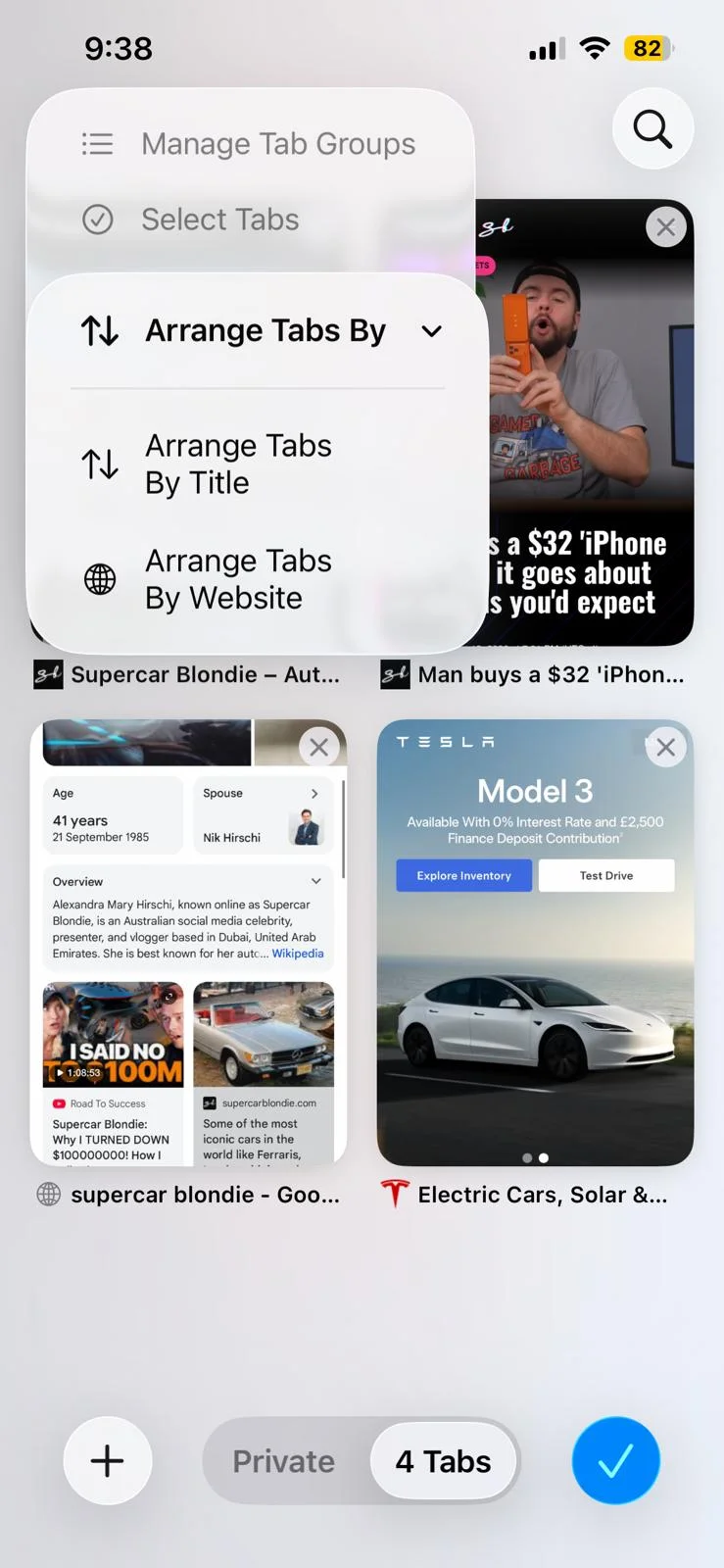
Open your tabs, tap the menu button and choose Arrange Tabs By.
You can then sort your open tabs by title or website.
It’s particularly useful if you’ve accumulated a ridiculous number of pages and have no idea where anything is anymore.
4. Let Apple Intelligence organize your tabs into topics
This is where Safari gets considerably smarter on iOS 27.
Apple Intelligence can look at your open tabs and automatically organize related pages into topics, such as news or travel.
To try it, open the tab view, tap the organize button and choose Automatically Create Topics.
Safari will then create suggested groups based on the tabs you’ve got open, saving you from having to sort everything yourself.
The feature requires an Apple Intelligence-compatible device and availability varies by language and region.
5. Translate an entire website
Safari can also save you from copying and pasting foreign-language webpages into a separate translation app.
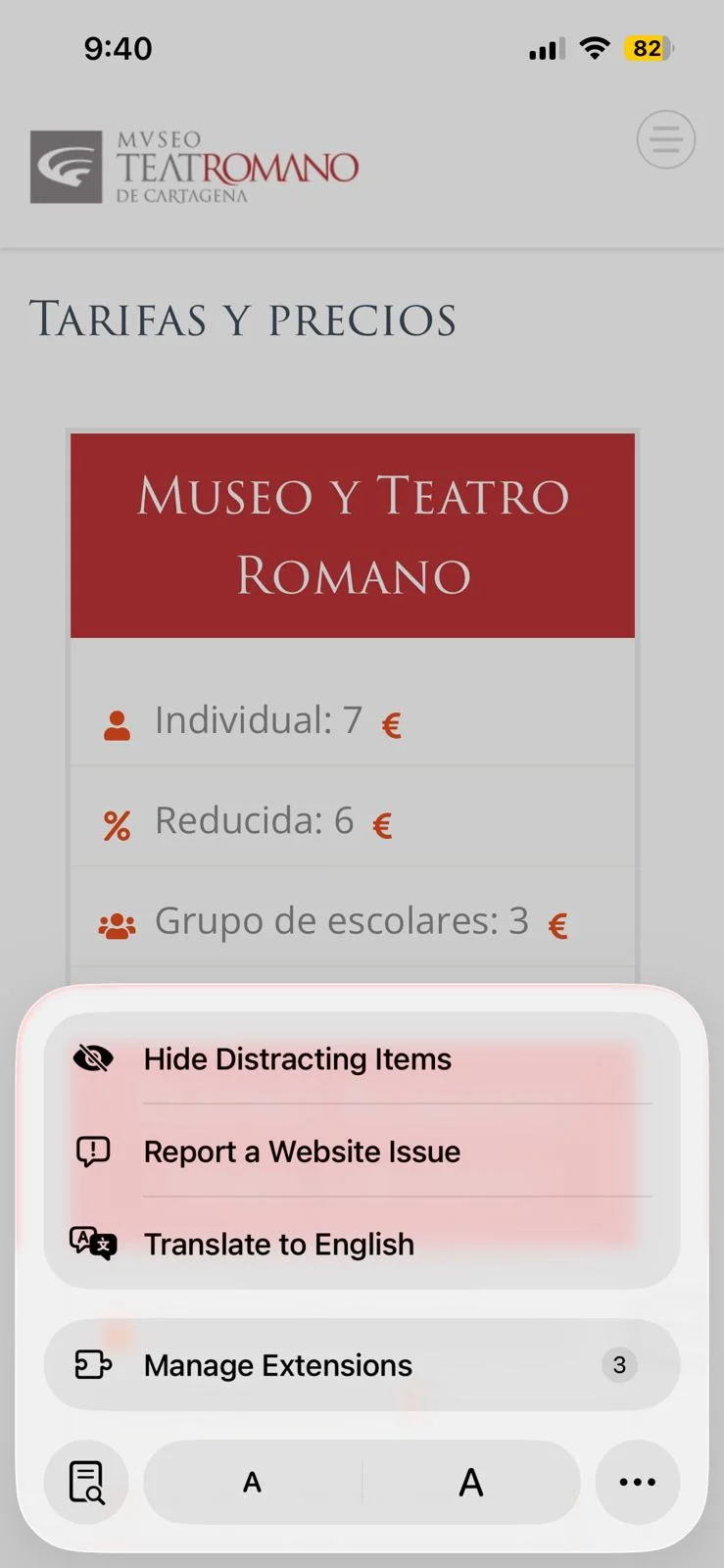
When you’re viewing a webpage in another supported language, tap the Page Menu button and choose Translate to [language].
Safari will translate the webpage for you, so you can carry on reading without jumping between different apps, but Apple notes that translation isn’t available for every language or region.
6. See which websites are tracking you
Safari has a useful privacy report hidden away in its menus.
Tap the tools button next to the address bar, open the additional options and choose Privacy Report.
You’ll then be able to see information about websites that have contacted trackers and the trackers Safari has blocked.
It gives you a surprisingly useful look at what’s happening behind the scenes while you’re browsing.
7. Make annoying parts of websites disappear
Some websites seem determined to cover the thing you’re actually trying to read with pop-ups, boxes and other distractions.
Safari’s Hide Distracting Items feature lets you select elements on a webpage and make them disappear.
Once you’ve finished, you can use the same menu to show the hidden items again.
It won’t magically make every website perfectly designed, but it can make particularly cluttered pages much easier to read.

8. Get Safari to summarize a webpage
If you’ve landed on a huge webpage but don’t fancy reading every word, Apple Intelligence can help.
Safari can generate a summary of a webpage, giving you a quicker way to understand the main points without working your way through the entire thing.
Apple lists webpage summaries as one of Safari’s Apple Intelligence features.
It’s particularly handy when you’re researching something and just want to work out whether a lengthy page is actually worth reading in full.
9. Preview a link without opening it
There’s no need to open every link just to find out what’s on the other side, but this feature has been around since before the era of iOS 27.
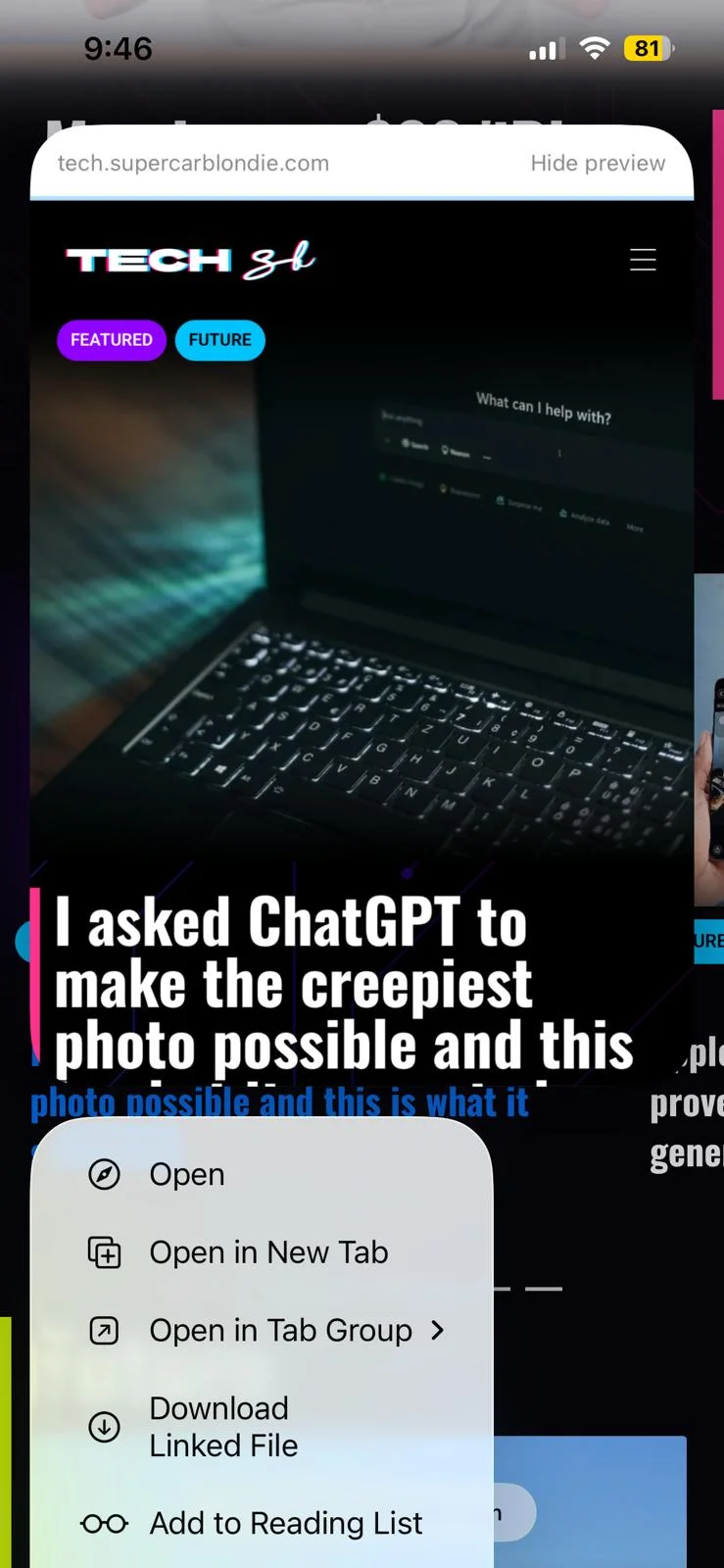
Simply press and hold a link in Safari and a preview will appear without taking you away from the page you’re currently reading.
If it looks useful, you can open it from there, but if it doesn’t, just tap outside the preview and carry on browsing.
10. Tell Safari to keep an eye on a webpage
One of the newer iOS 27 additions is Notify Me, which can monitor a webpage and alert you when it changes.
You can set the Apple browser to check a page on a schedule and receive a notification when something has been updated.
That could be useful for keeping an eye on things like product restocks, discounts or webpages that you don’t want to keep manually refreshing.
There are limitations, though, as checks can currently be scheduled hourly, daily, weekly or monthly rather than continuously.

So there you have it, happy searching, readers!