This one background service on Windows could be causing your PC to constantly freeze and you can switch it off


If your Windows PC keeps freezing at random moments, one little-known background service could be the culprit.
The service is enabled by default on Windows machines and is designed to make your computer feel faster by preloading apps you use regularly.
But for some users, it can end up doing the exact opposite, causing spikes in disk, CPU, and memory usage that lead to annoying slowdowns and freezes.
Fortunately, it’s easy to disable and many users have reported improvements after doing so.
Why this Windows background service could be causing freezes
The main culprit for your slow tech is called SysMain, previously known as Superfetch.
It’s been part of Windows since the days of Windows Vista and works by monitoring the apps you use most often and loading them into memory ahead of time so they open faster.
In theory, it’s a clever idea.
If you regularly open the same browser, game launcher, or productivity app, SysMain tries to predict that and get everything ready before you click.
However, the feature can sometimes create more problems than it solves, especially on older PCs or systems with limited resources.
Rather than improving performance, SysMain can generate sudden spikes in CPU, RAM, and disk activity that make a computer feel sluggish or temporarily freeze.
Some Windows users have also reported that disabling the service eliminated brief but frequent freezes and reduced excessive disk usage.
How do you switch off SysMain?
The good news is that SysMain isn’t considered a core Windows service, meaning it can be disabled without breaking your system.
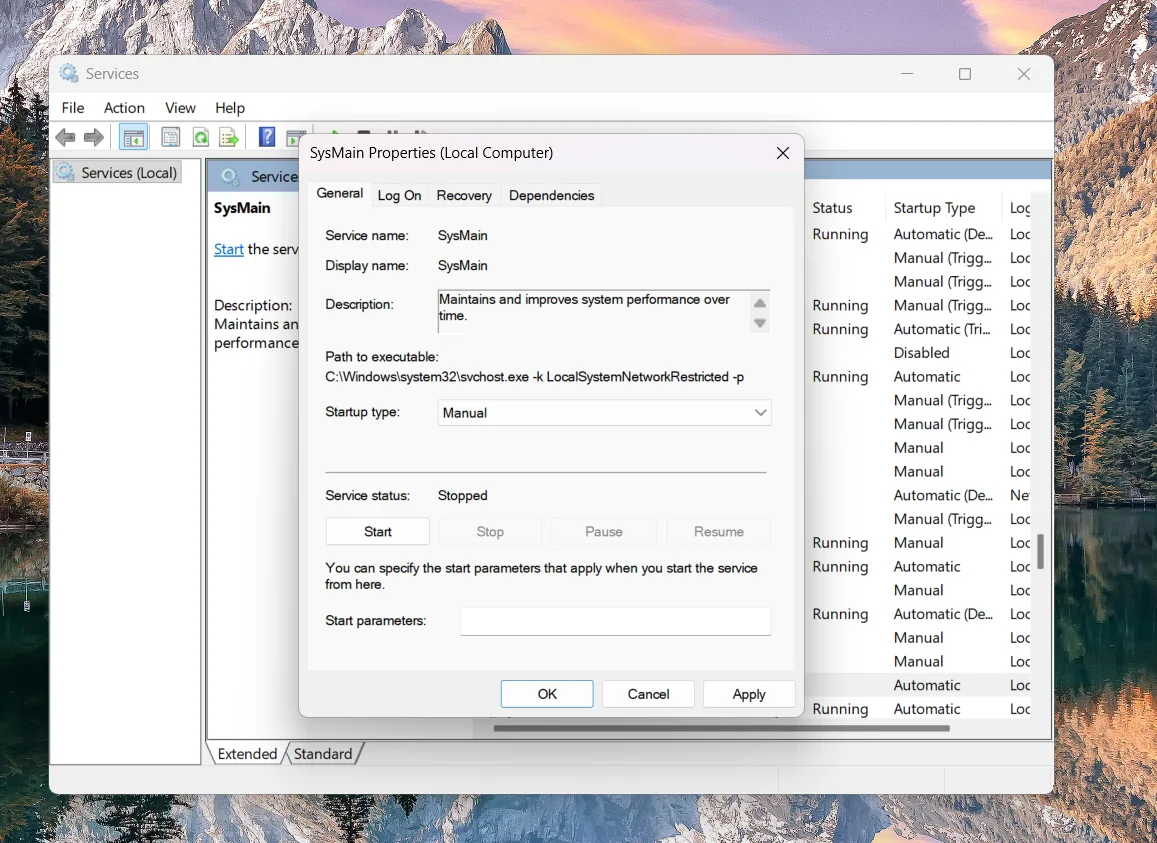
To turn it off:
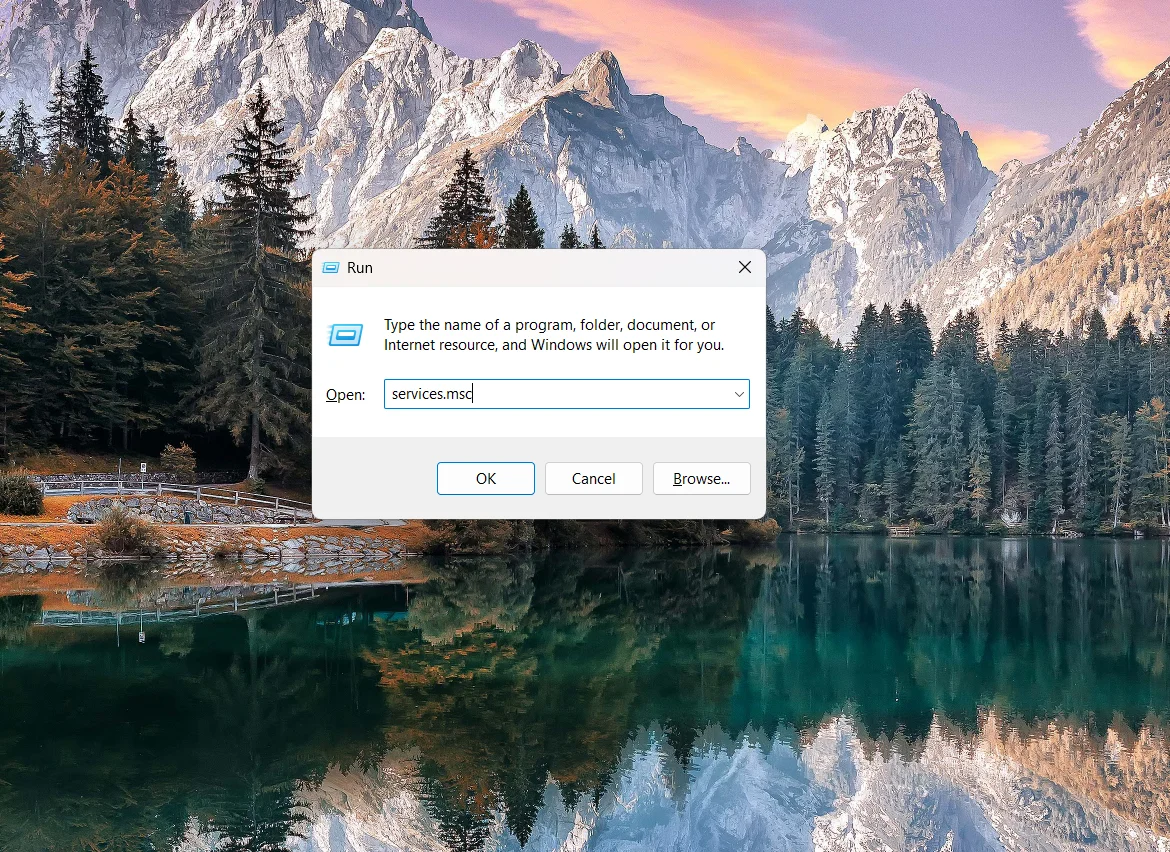
- Press Windows Key + R
- Type services.msc and press Enter
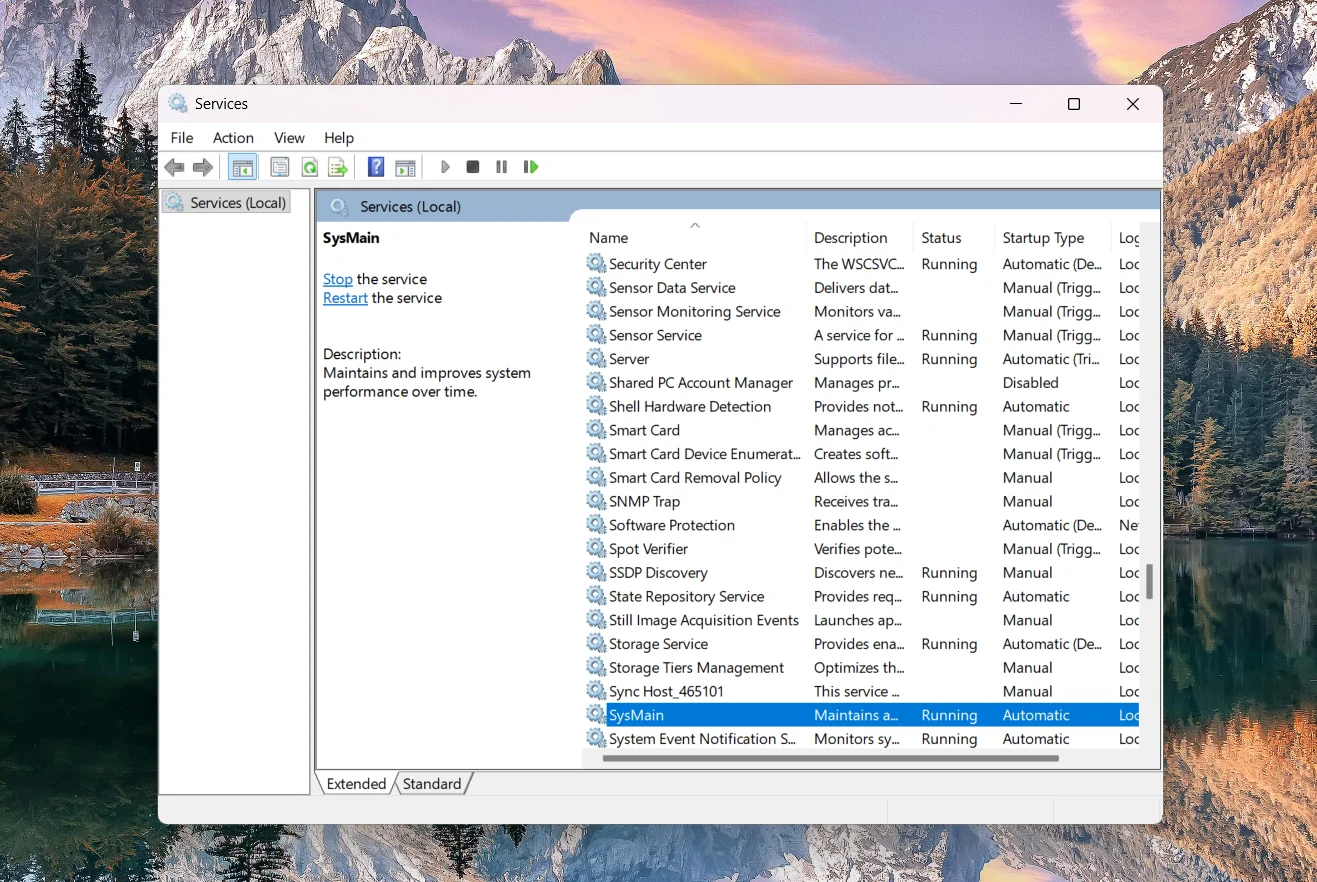
- Scroll down and find SysMain
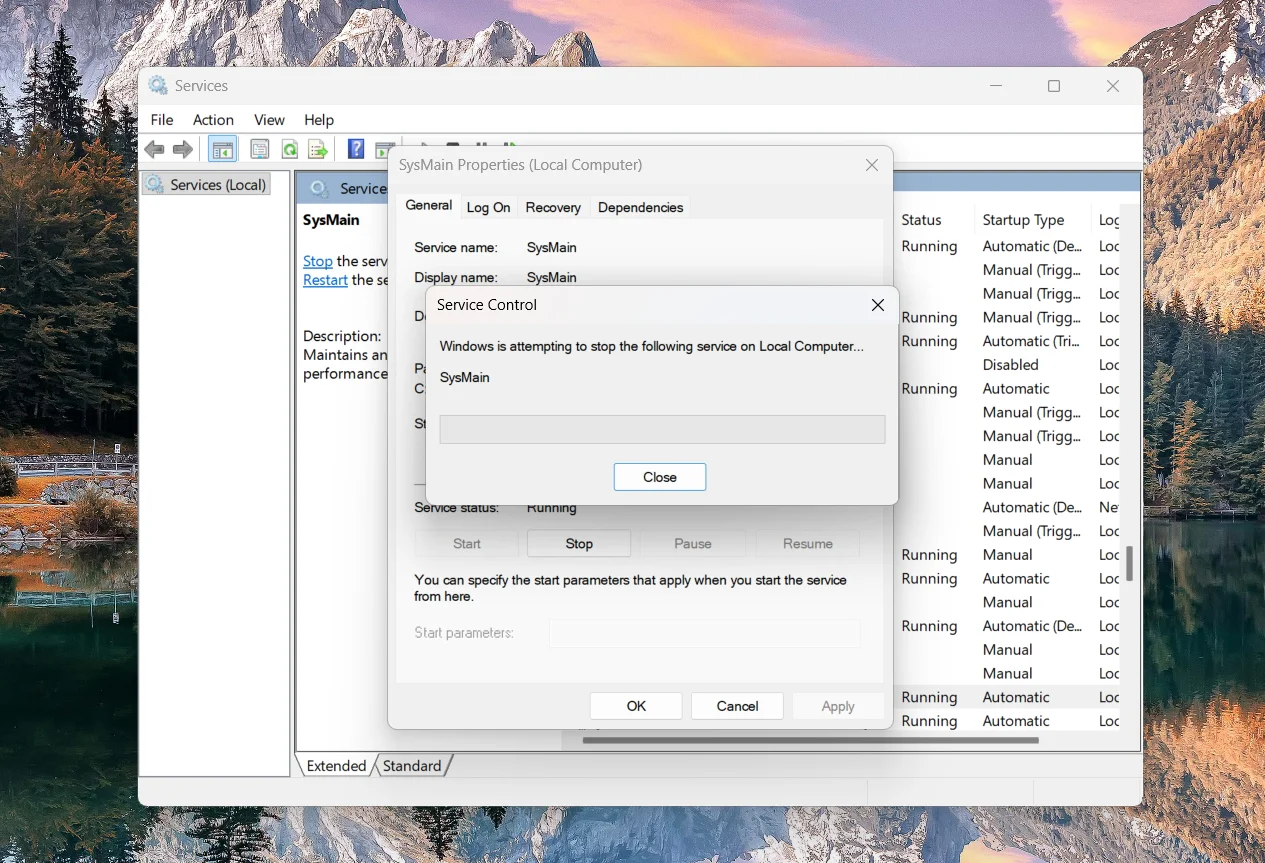
- Double-click the service
- Click Stop
- Change Startup Type to Disabled or Manual
- Click Apply and then OK
That said, SysMain isn’t always the villain.
On some systems, particularly those with slower storage drives, it can still help applications launch more quickly. Other users have found that disabling it actually made their PCs feel slower over time.
The best approach is to test it yourself.
If your PC has been plagued by random freezes, stuttering, or unexplained resource spikes, turning off SysMain could be a simple fix worth trying.